How to Bulk Activate Properties for Make My Trip - Multiproperty
Modified on: 2026-08-26 16:47
As part of our design update, the screenshots are currently being revised.
Introduction
This guide explains how to bulk activate properties on the Make My Trip channel through the PC Multiproperty Portal.
Follow the steps below to connect the Make My Trip channel, activate properties, configure channel settings, and bring your properties live.
Instructions
Step 1: Connect Make My Trip Channel
- Sign in to the PC Multiproperty Portal.
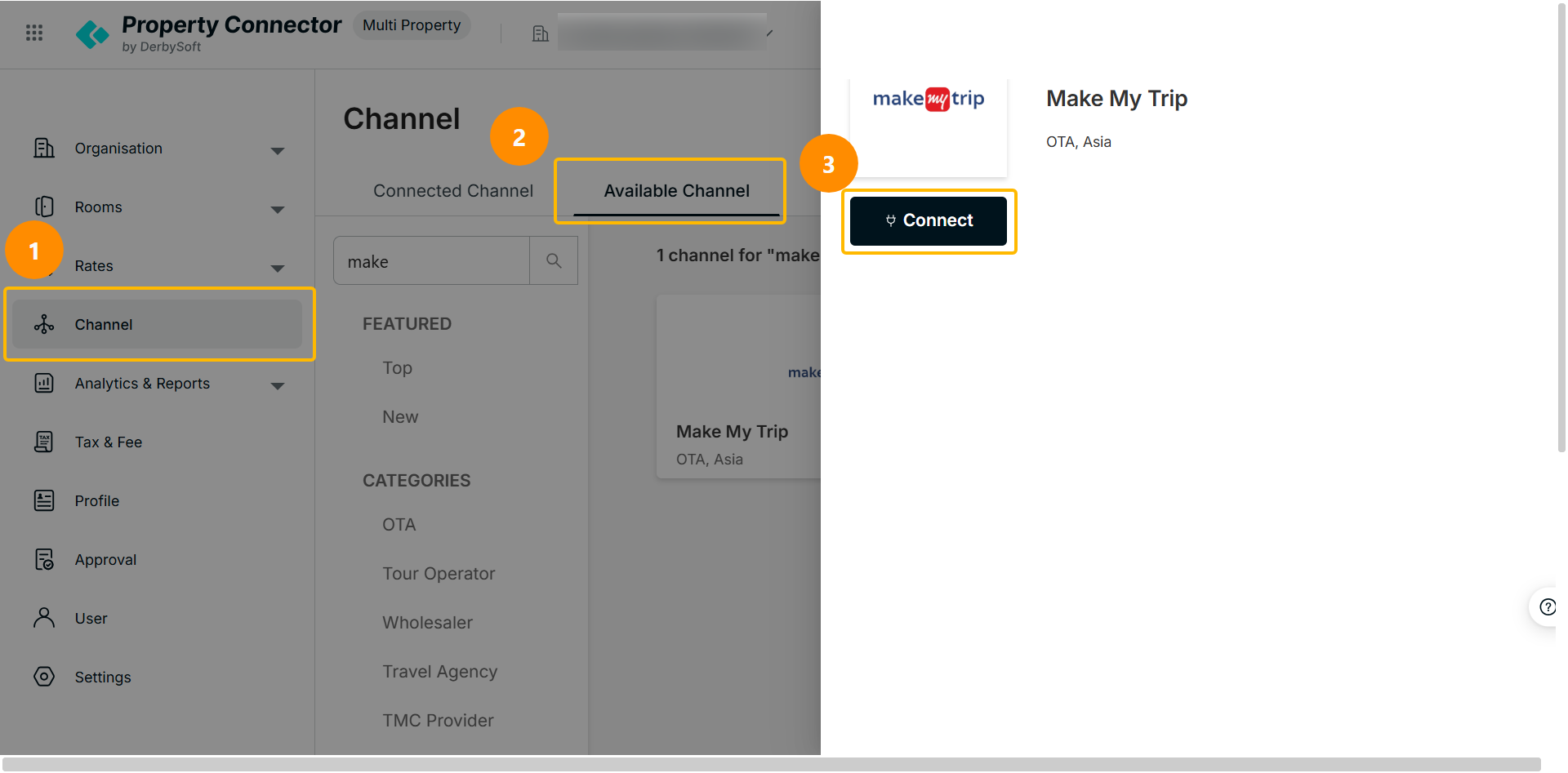
- Navigate to Channel > Available Channels.
- Search for Make My Trip and click Connect.
- Wait for admin approval before proceeding to the next step.
Step 2: Bulk Activate Properties
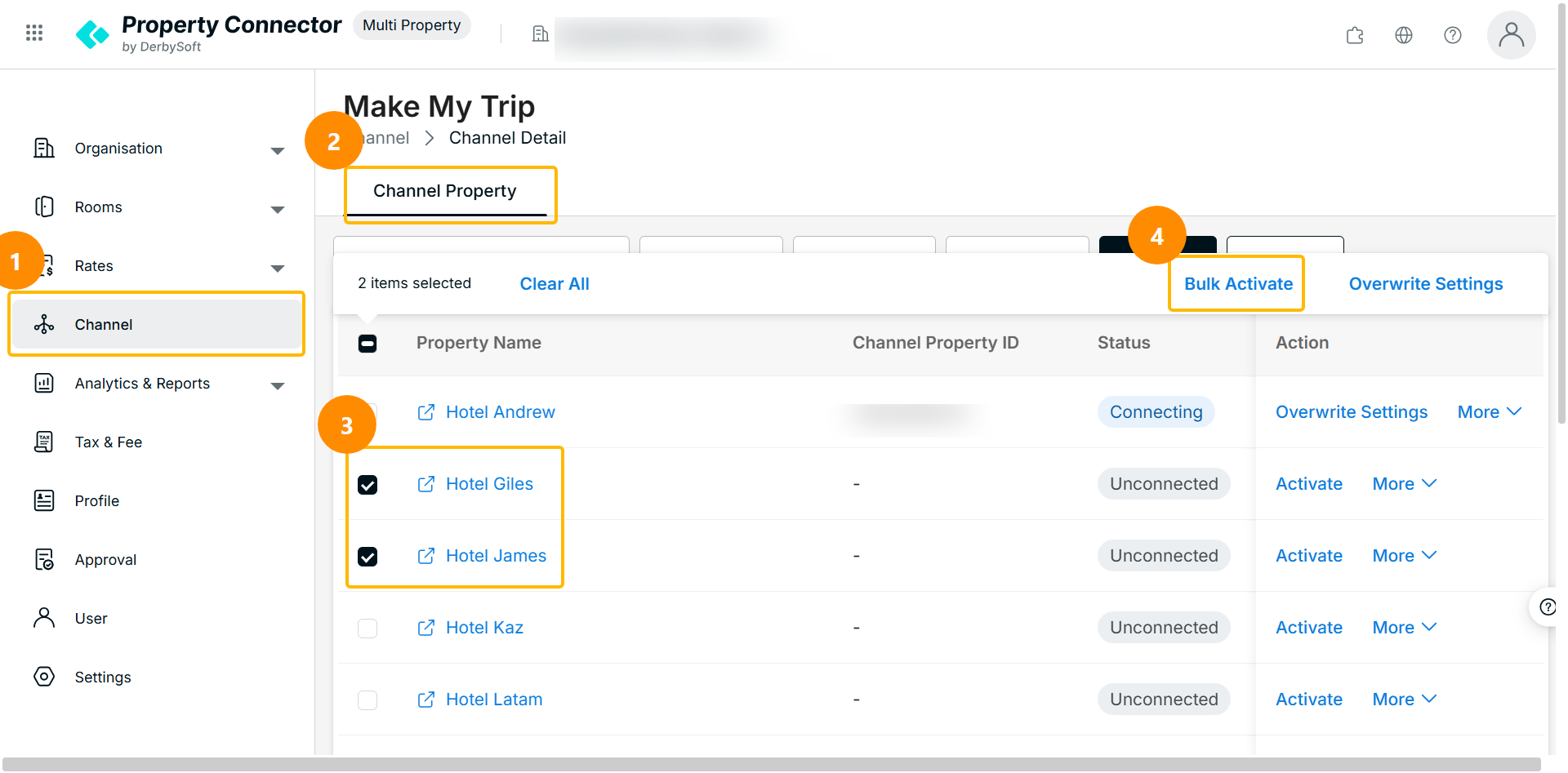
- Navigate to Channel > Connected Channels.
- Find Make My Trip from the connected channel list.
- Select the properties you would like to activate.
- Click Bulk Activate, and the property statuses will be Pending Approval.
- Wait for admin approval to complete the activation process.
Step 3: Overwrite Channel Settings
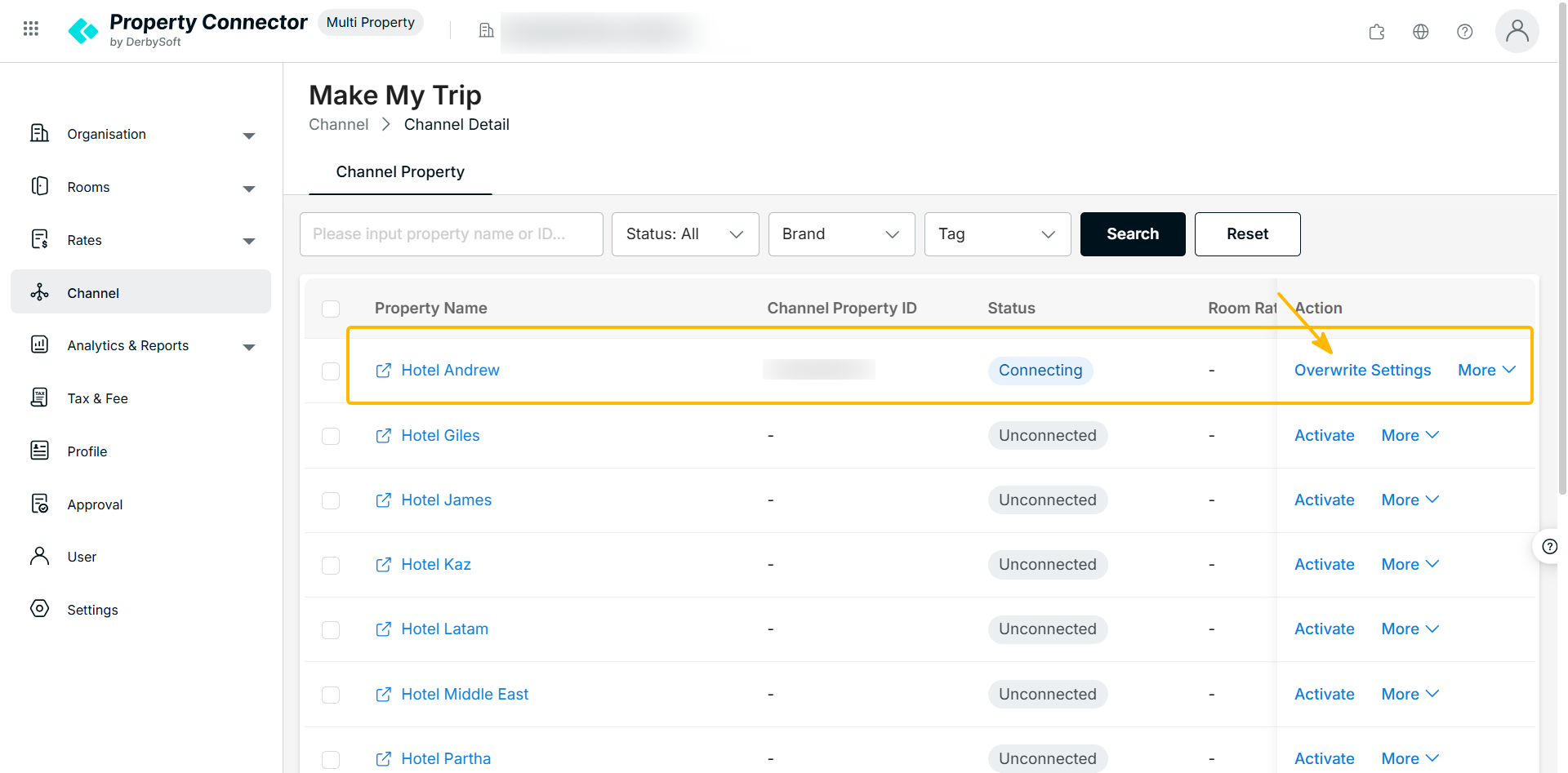
After your properties are activated, the status will be Connecting:
- Configure the channel settings by completing the required information, including Basic, Rate Rules, Source, Guarantee, and Profile.
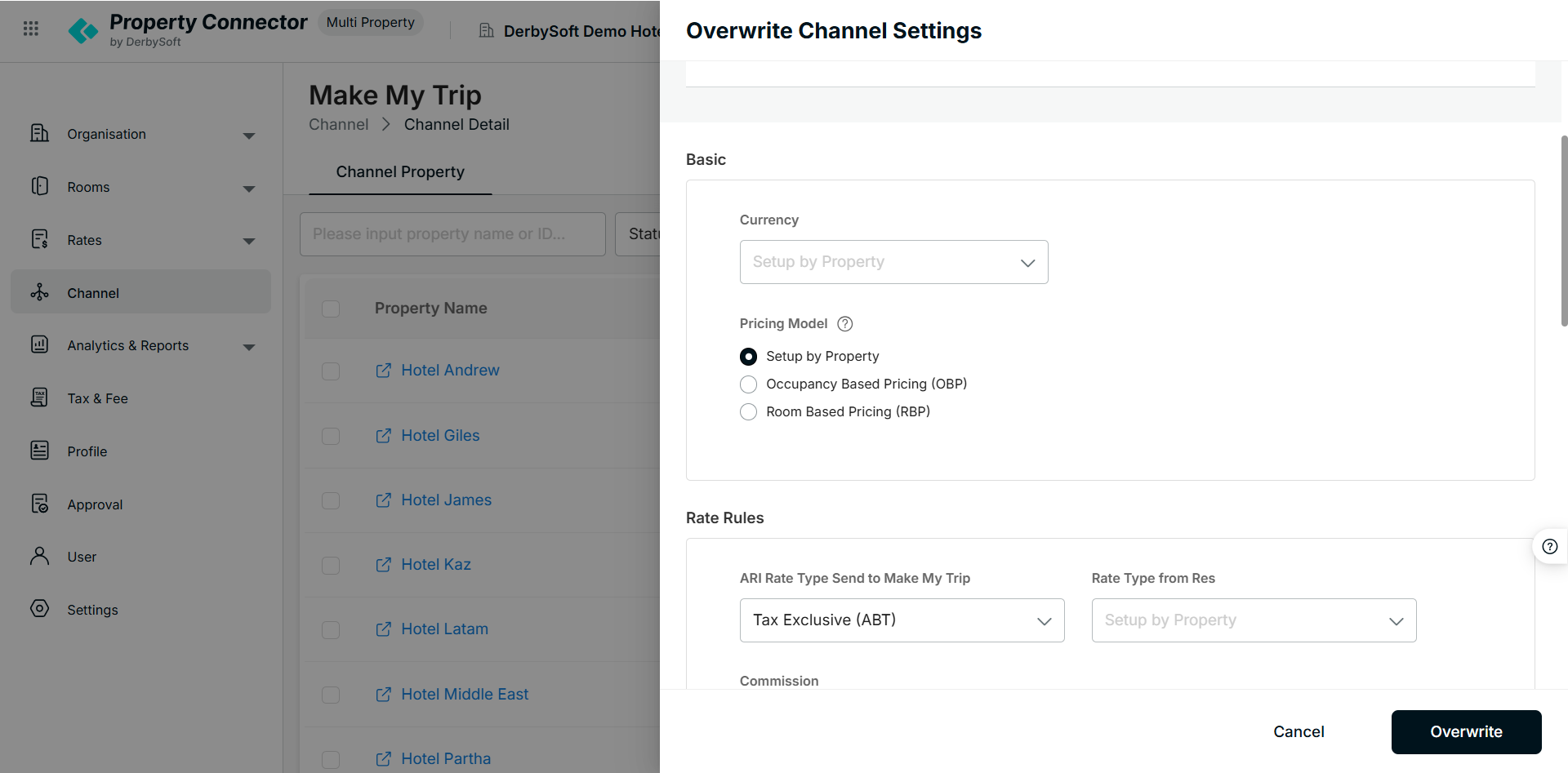
- Click Overwrite to review the settings that will be applied to the selected properties.
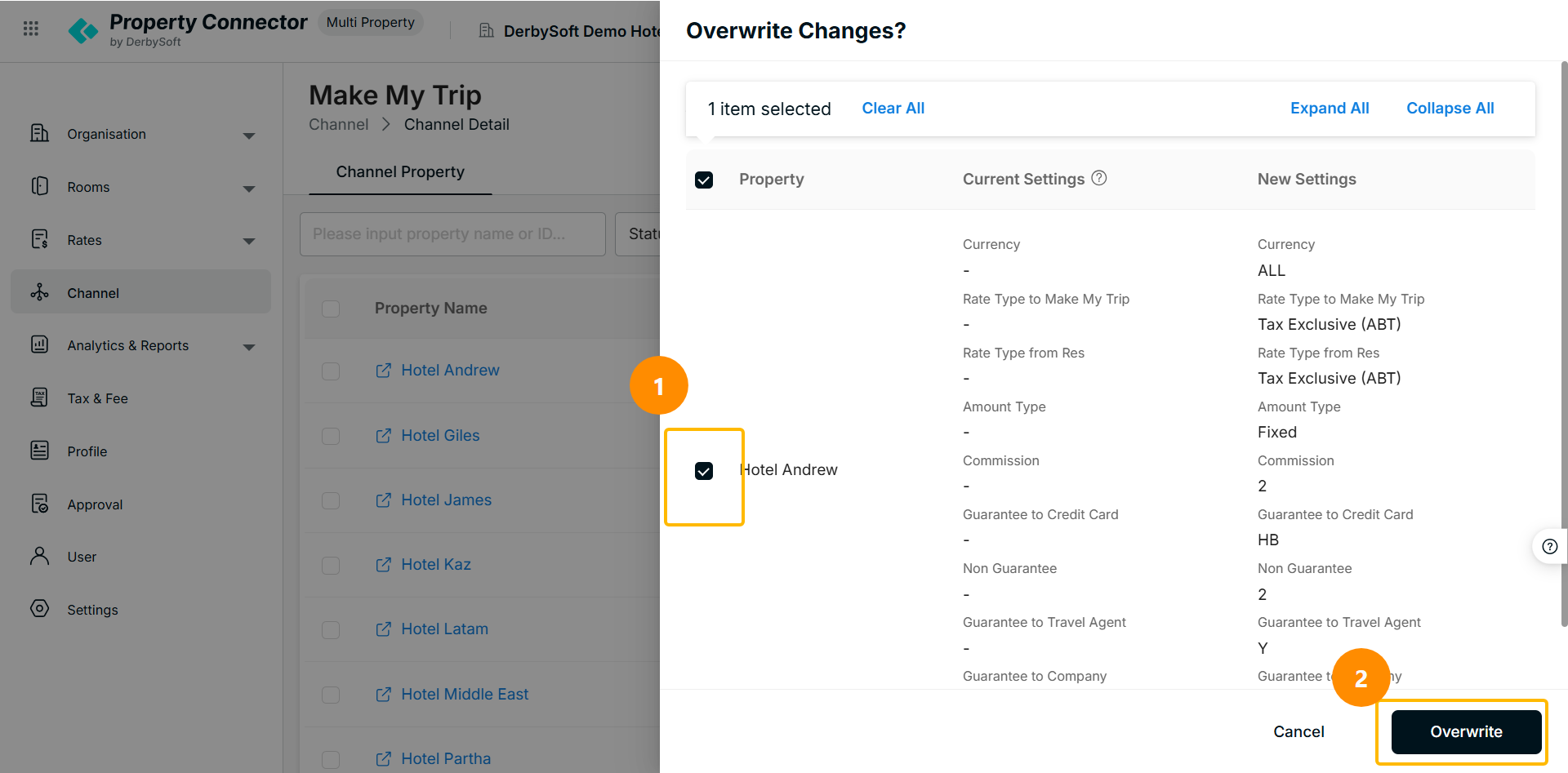
- Confirm the settings and click Overwrite again to complete the update.
Step 4: Go Live
After the channel settings have been successfully updated:
- Click More > Go Live for the selected properties.
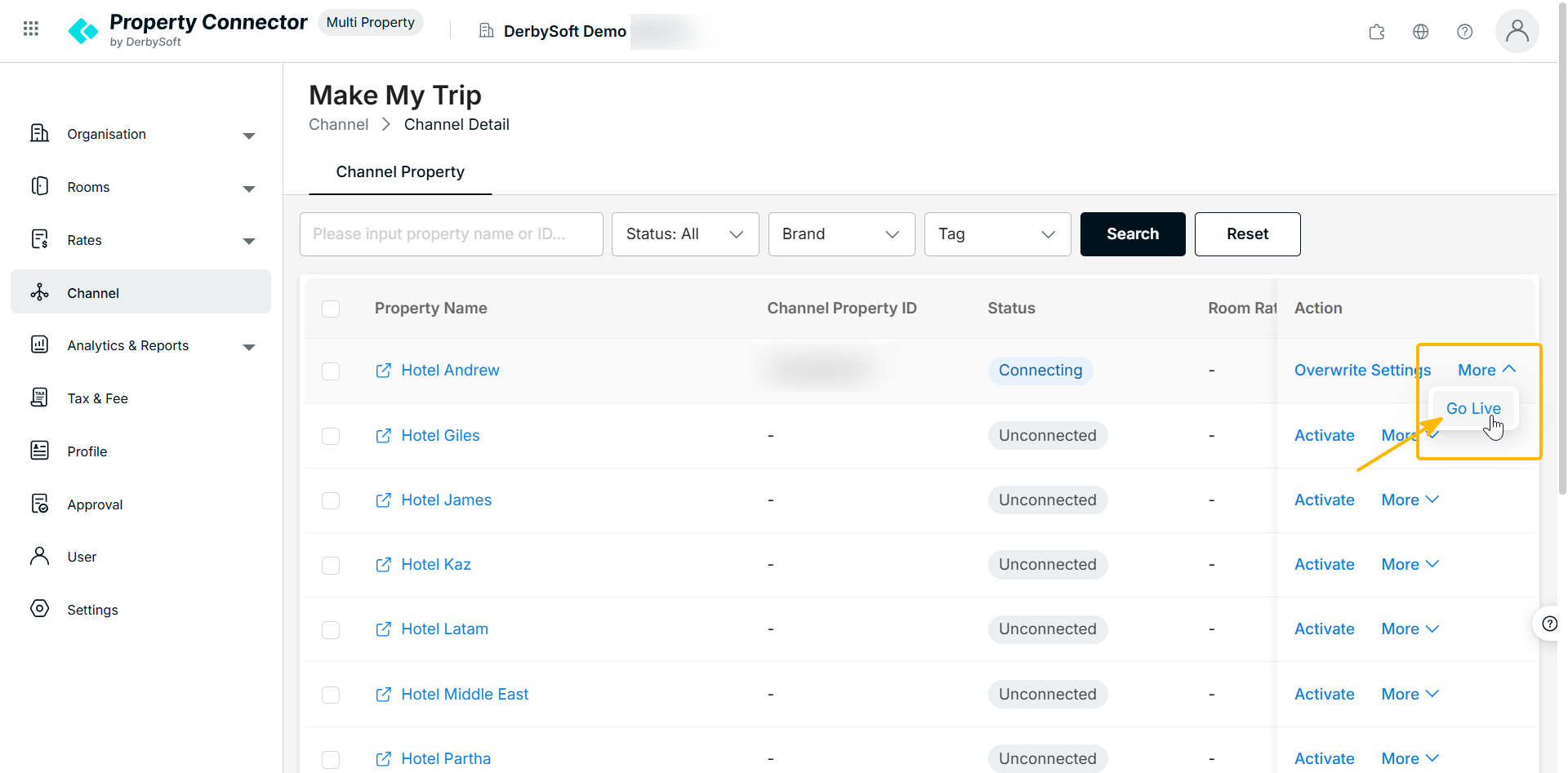
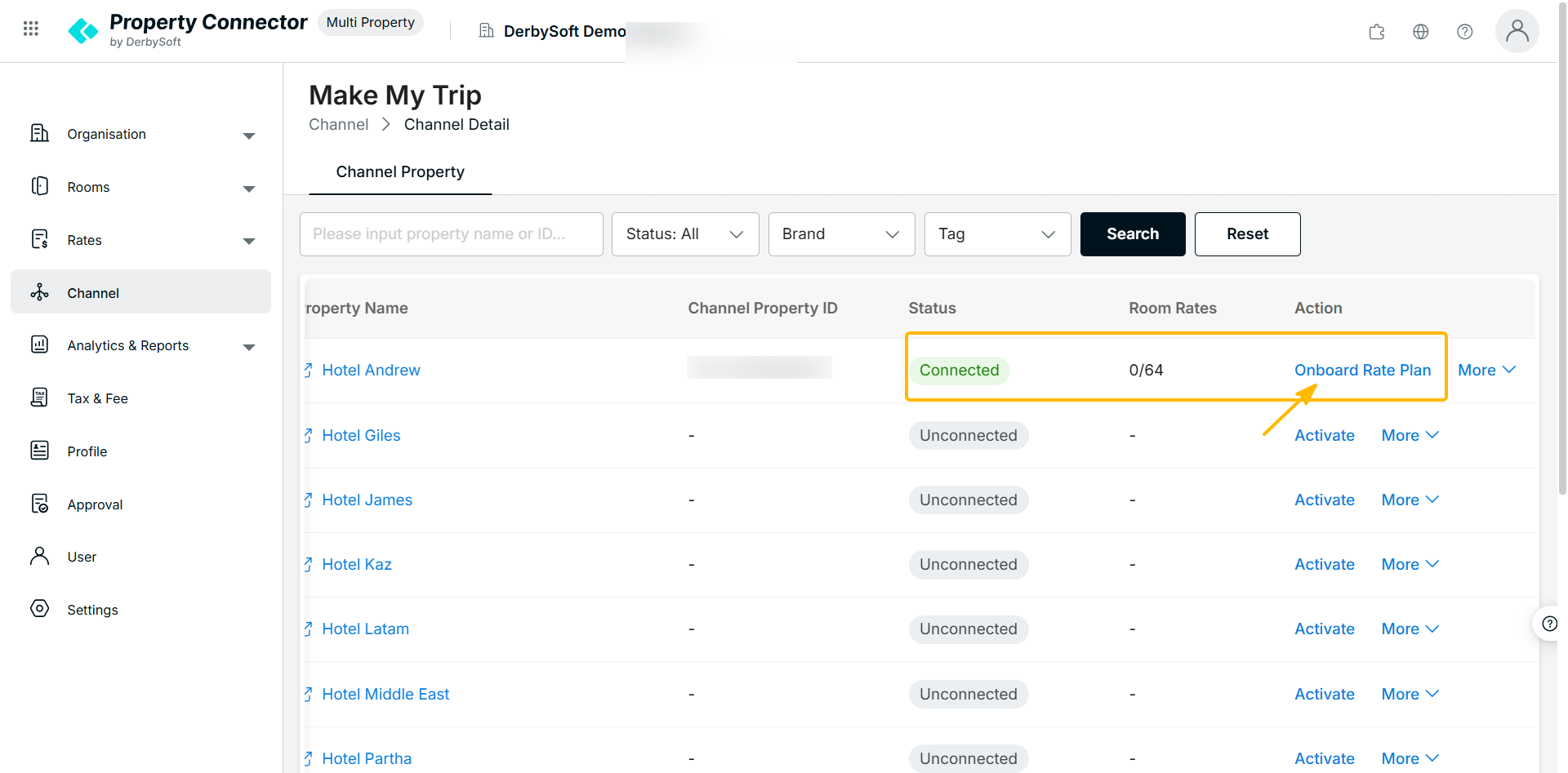
- Once the properties are live, onboard your rate plans to start distributing data to Make My Trip.
Did you find it helpful? Yes No
Send feedbackSorry we couldn't be helpful. Help us improve this article with your feedback.