How to Set Channel-Level Reservation Rate Comparison
Modified on: 2026-08-26 11:18
As part of our design update, the screenshots are currently being revised.
Overview
Reservation rate comparison helps detect potential price discrepancies between channel reservation rates and PC rates.
When the difference exceeds the configured threshold, the system will execute the selected action: either sending an alert email with details or automatically rejecting the reservation.
At channel level, you can configure a separate rule for a specific channel. Once enabled, the channel-level setting will override the property-level default policy.
Instruction
Step 1. Go to Channel Settings
- Navigate to the target Channel Setting page.
- Find the Reservation Rate Comparison section.
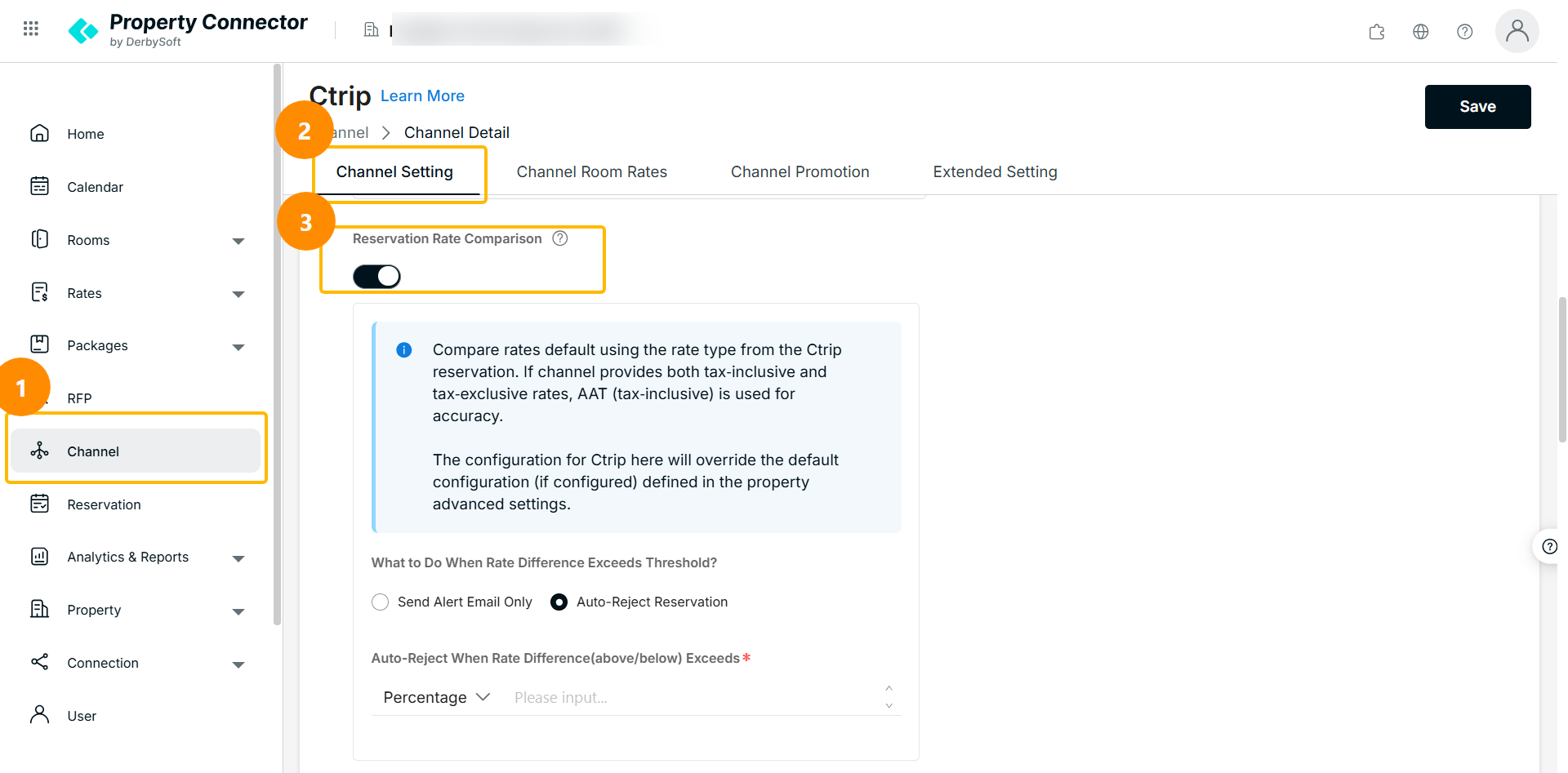
Step 2. Enable & Set Threshold
Turn on Reservation Rate Comparison if this channel needs a separate configuration.
If it is turned off, the channel will follow the property-level setting.
Choose how the system should respond when the rate difference exceeds the threshold:
- Alert Only (Default): The system processes the order normally but sends an email notification.
- Auto-Reject: The system automatically rejects the incoming reservation.
Threshold Type
You can choose:
- Percentage: Based on rate difference ratio.
- Fixed Value: Based on absolute price difference.
Threshold Value: Value must be greater than 0.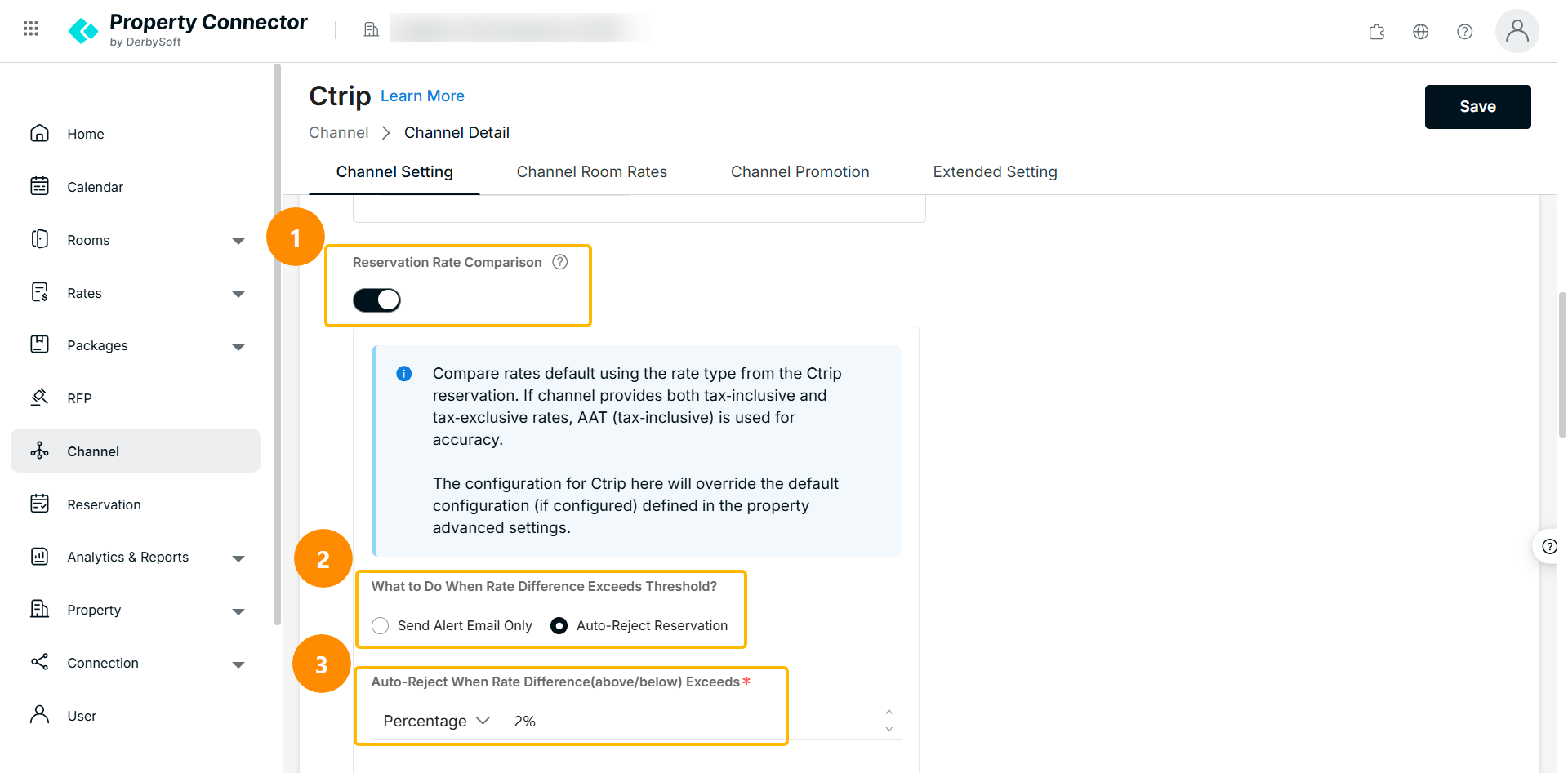
Important:Priority
The system checks the channel-level setting first:
| Property Level | Channel Level | Final Policy |
|---|---|---|
| OFF | ON | Use channel-level configuration |
| ON | ON | Use channel-level configuration |
| ON | OFF | Use property-level configuration |
Comparison
The system compares the Reservation Rate sent by the channel with the PC ARI Rate assigned to the channel.
Tax Standard
By default, the system compares rates using the rate type from the channel reservation. If the channel provides both tax-inclusive and tax-exclusive rates, AAT tax-inclusive rate is used for accuracy.
Percentage Threshold & Rounding
When using a percentage threshold, rounding may affect the comparison result.
The system keeps up to two decimal places when calculating the difference.
For example, if the threshold is 1% and the actual calculated difference is 0.99%, it will be rounded to 1.00%, and the selected action will still be triggered.
Step 3. Add Email Address
You can add up to 10 recipients, and all recipients will receive alerts.
Email is required when Alert Only is selected or when alert notification is needed.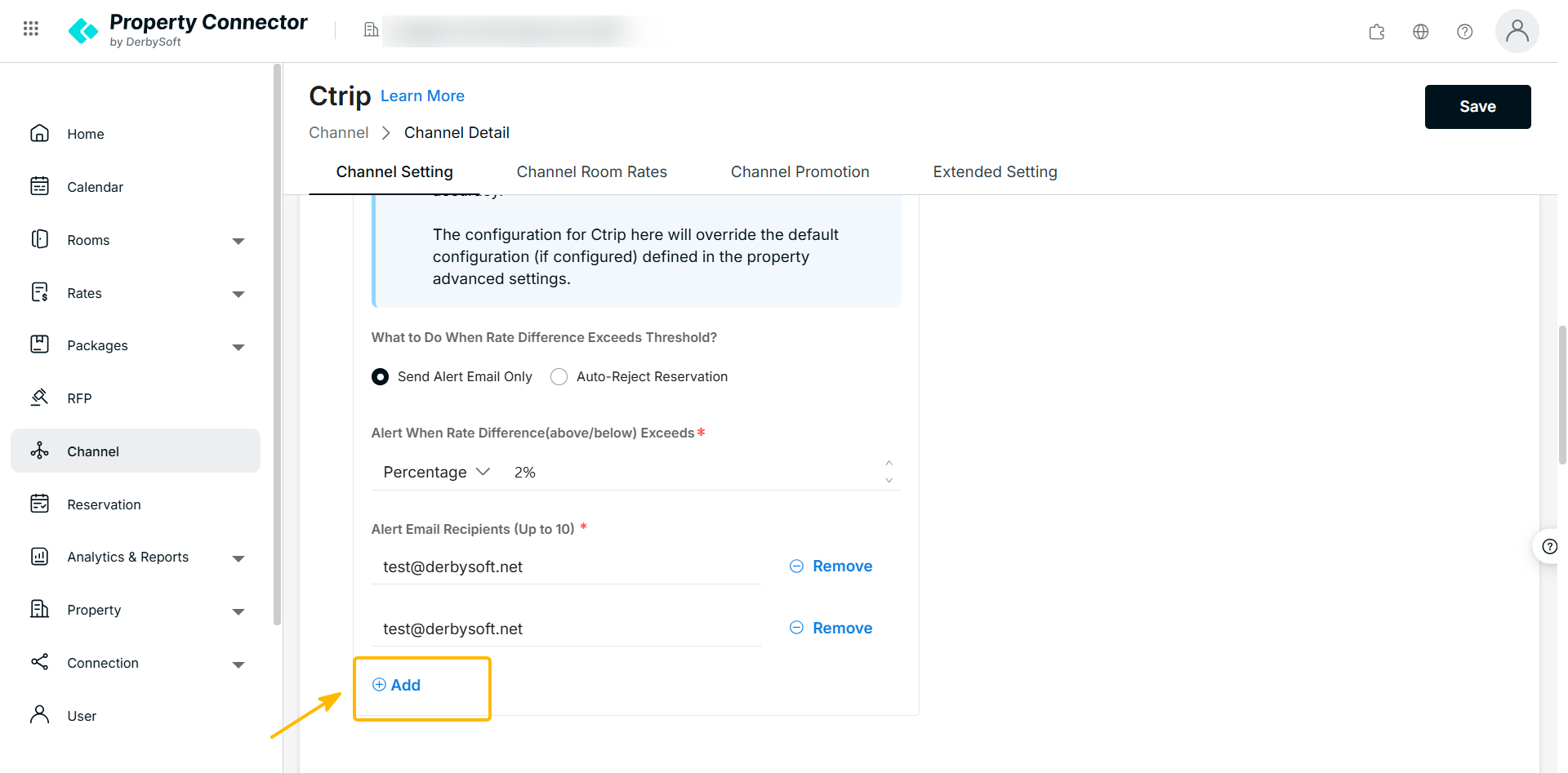
Step 4. Save Changes
Click Save to apply the configuration.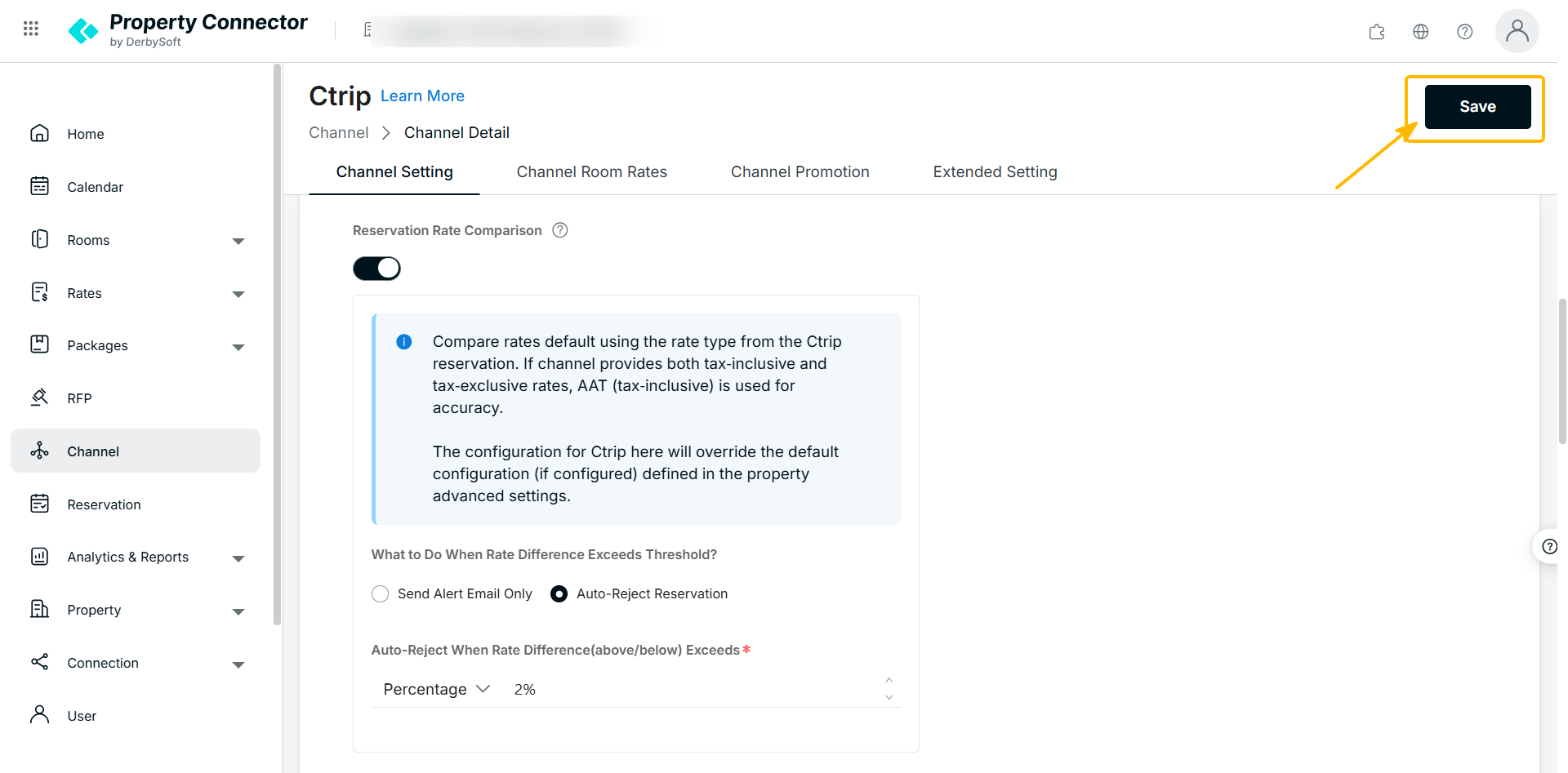
Once saved, all new incoming reservations for this channel will be checked.
- If Alert Only is selected, the system will send an alert email when the threshold is exceeded.
- If Auto-Reject is selected, the system will automatically reject the reservation. The order details will be displayed on the Reservation page for operations and troubleshooting.
Did you find it helpful? Yes No
Send feedback