How to Export Channel Room & Rates
Modified on: 2026-08-26 10:34
As part of our design update, the screenshots are currently being revised.
Overview
This guide covers the manual export of Room Type, Rate Plan, and Product data of connected hotels on the channel, used for channel onboarding, data verification, or offline delivery.
Instructions
Step 1: Navigate to the page
Go to Multi-property > Channel > Channel Details > Channel Property tab.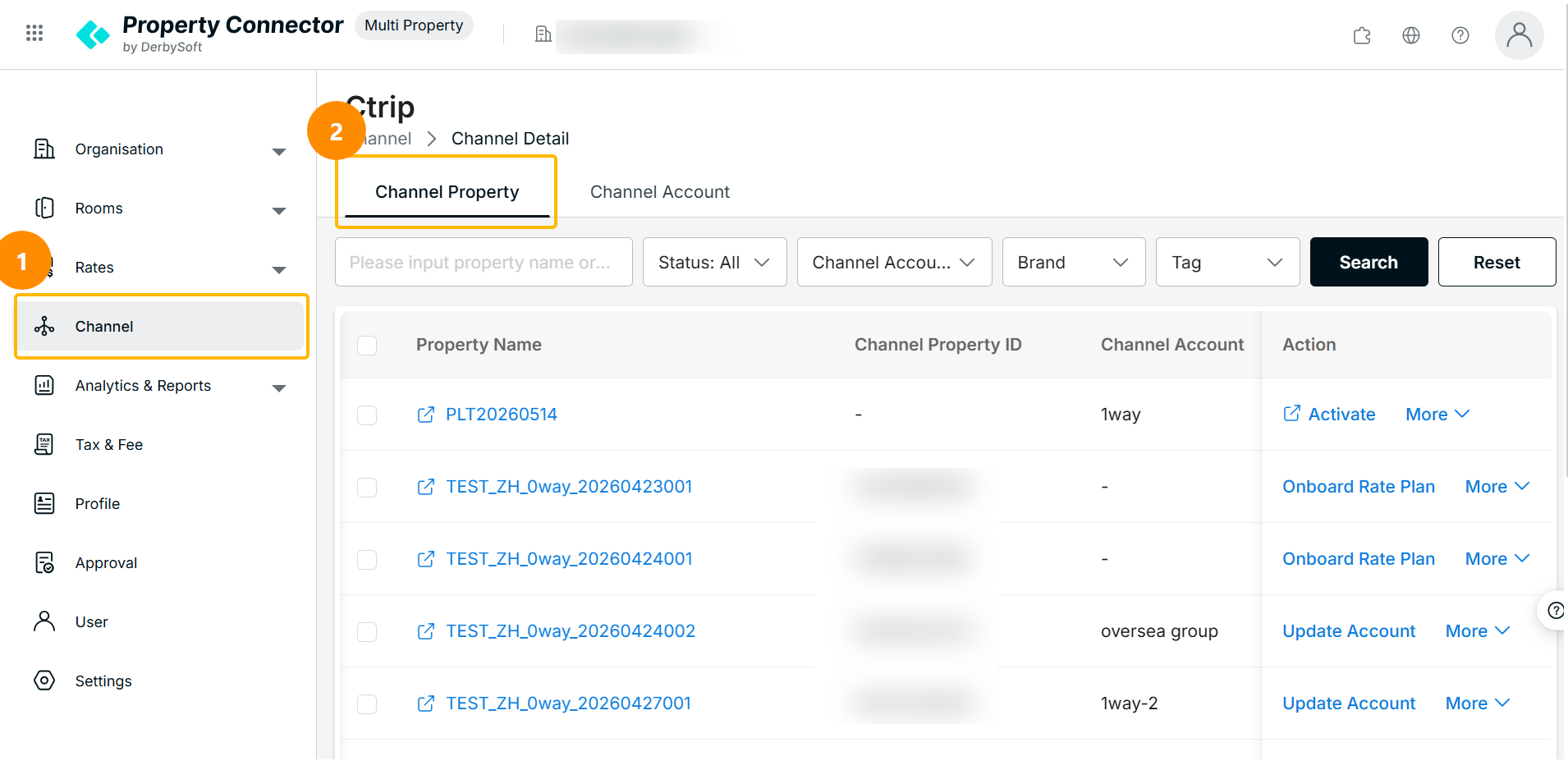
Step 2: Select hotels
The system shows the list of hotels and we support selecting multiple hotels.
Note: A maximum of 500 hotels can be selected per export.
Step 3: Trigger the export
Click the Export button. The button is available only when the current channel has at least one Connected hotel. If there are no Connected hotels, the export entry is unavailable.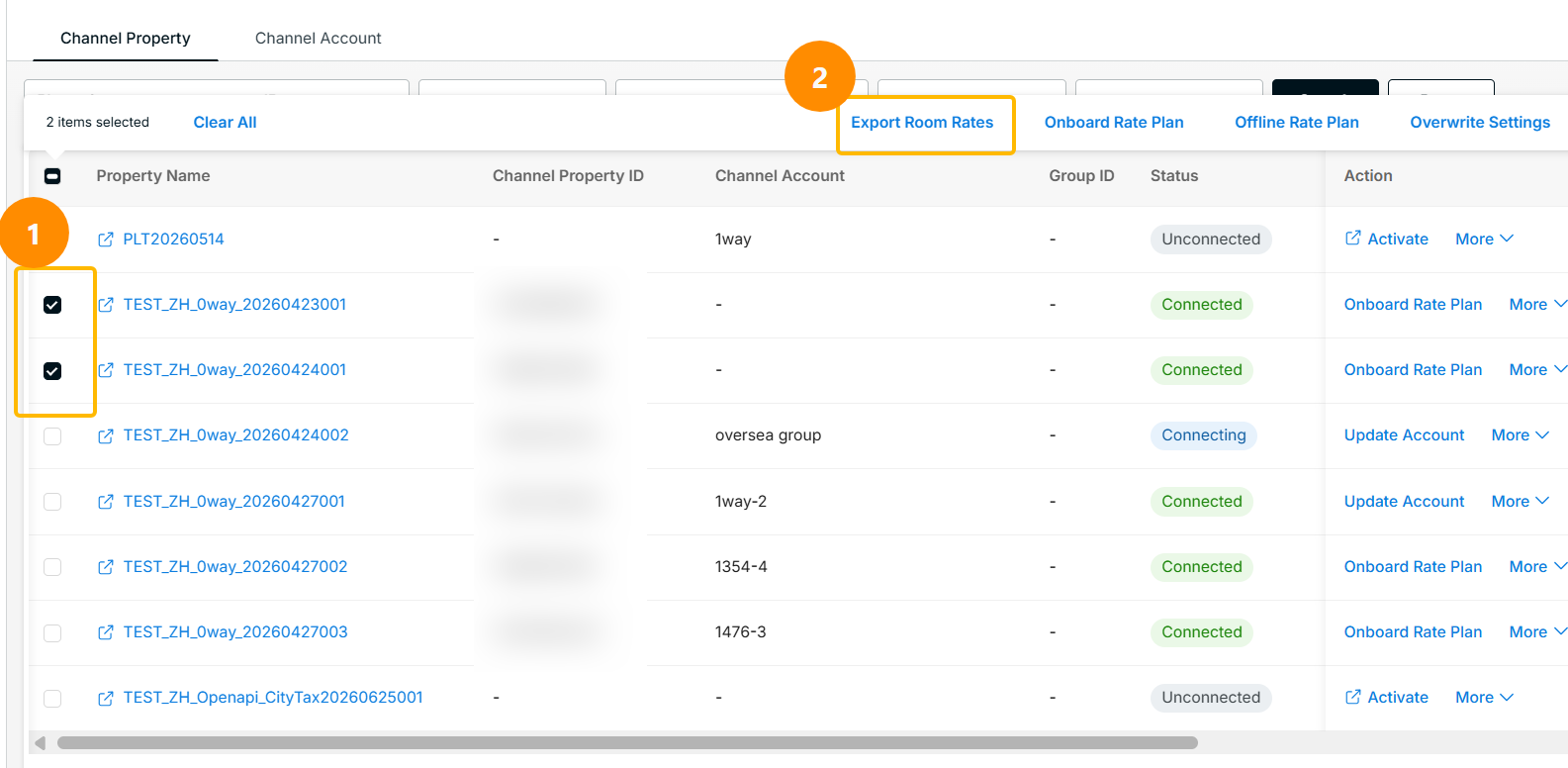
Step 4: Confirm the export
Click Confirm to submit the export task. The system generates the Excel file and sends it to you by email.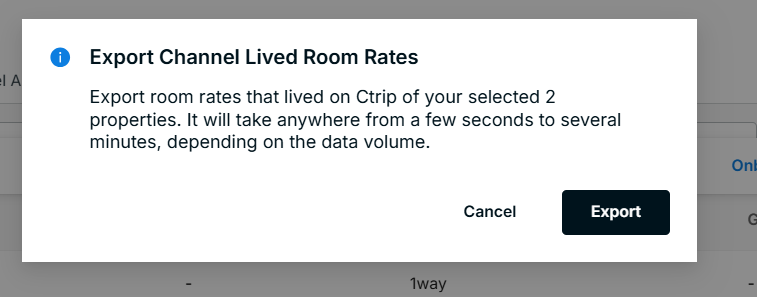
Step 5: Download the file
You will receive an email titled "Channel Room Rate Export Is Ready" with a download link. The file is delivered via email.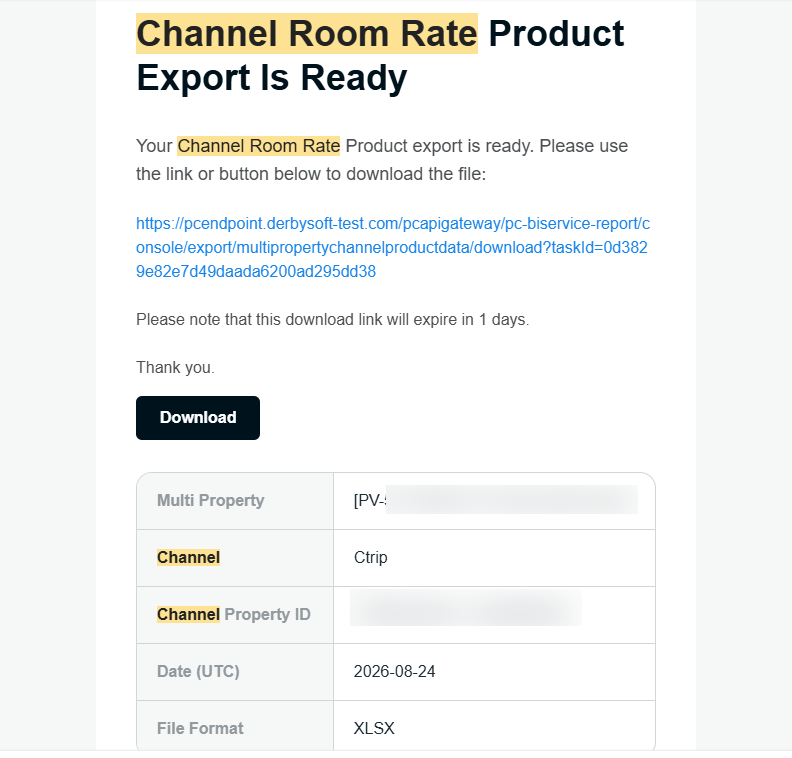
The Excel file contains three sheets:
| Sheet | Content |
|---|---|
| Room | Active room types available for the selected hotels under the current supplier |
| Rate | Active rate plans under the current supplier, incl. rate plan ID, cancellation policy rule code, and LOS rules |
| Products | Active product combinations (room type + rate plan) sellable on the current channel |
If the hotel count exceeds the file limit, the export is split into multiple Excel files, compressed into a ZIP, and sent to you.
Did you find it helpful? Yes No
Send feedback