How to Configure the Active Inventory Filter
Modified on: 2026-05-14 11:31
As part of our design update, the screenshots are currently being revised.
Introduction
This guide explains how to optimize your calendar display by using the active inventory filter to hide deactivated and creating room types or rate plans, improving your daily operational efficiency.
Instruction
Step 1: Locate the Display Settings
- Log in to the Single Property Console.
- Navigate to the Calendar page.
- Locate the Sorting, Favorite & Display configuration icon (found in the top settings bar).
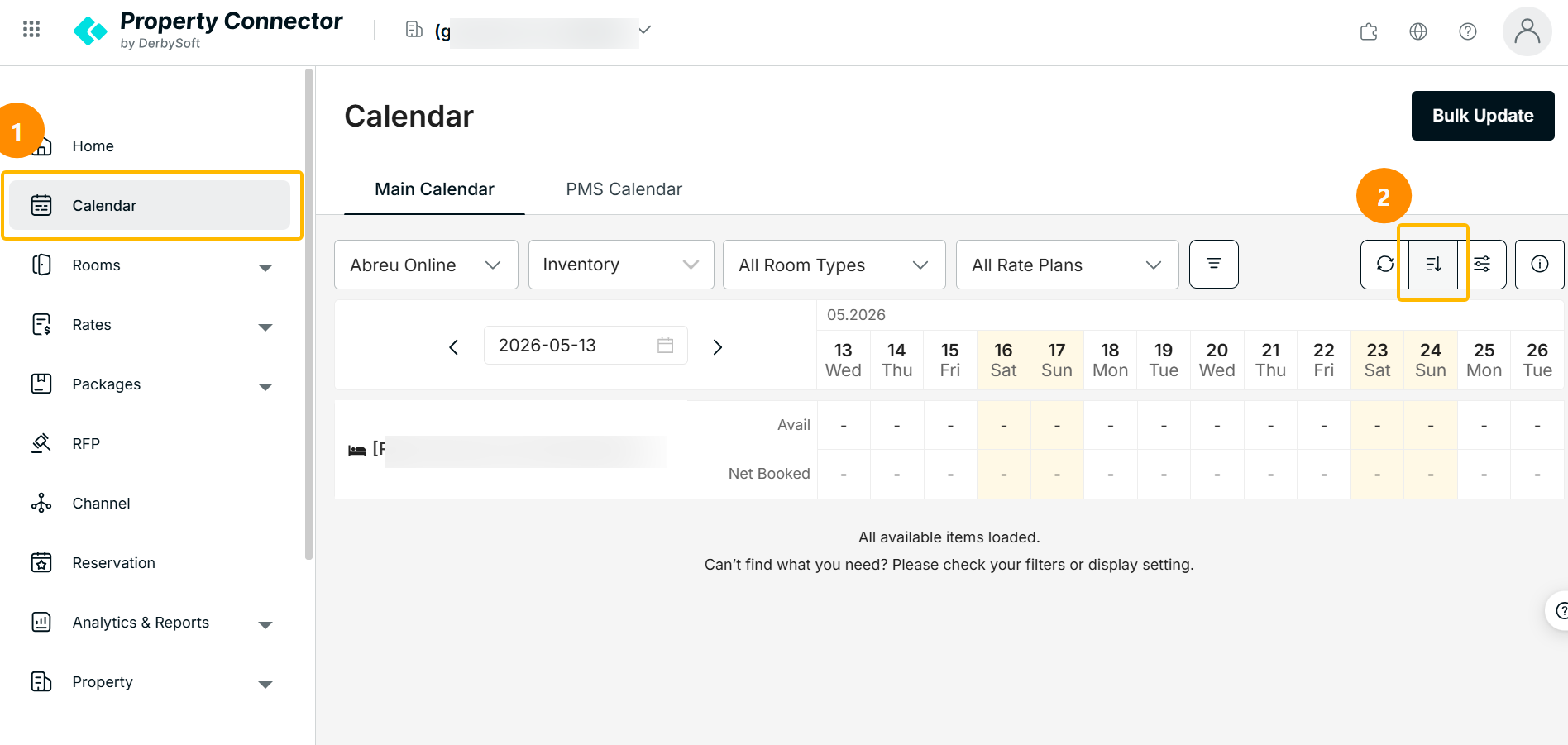
Step 2: Configure the Inventory Filter
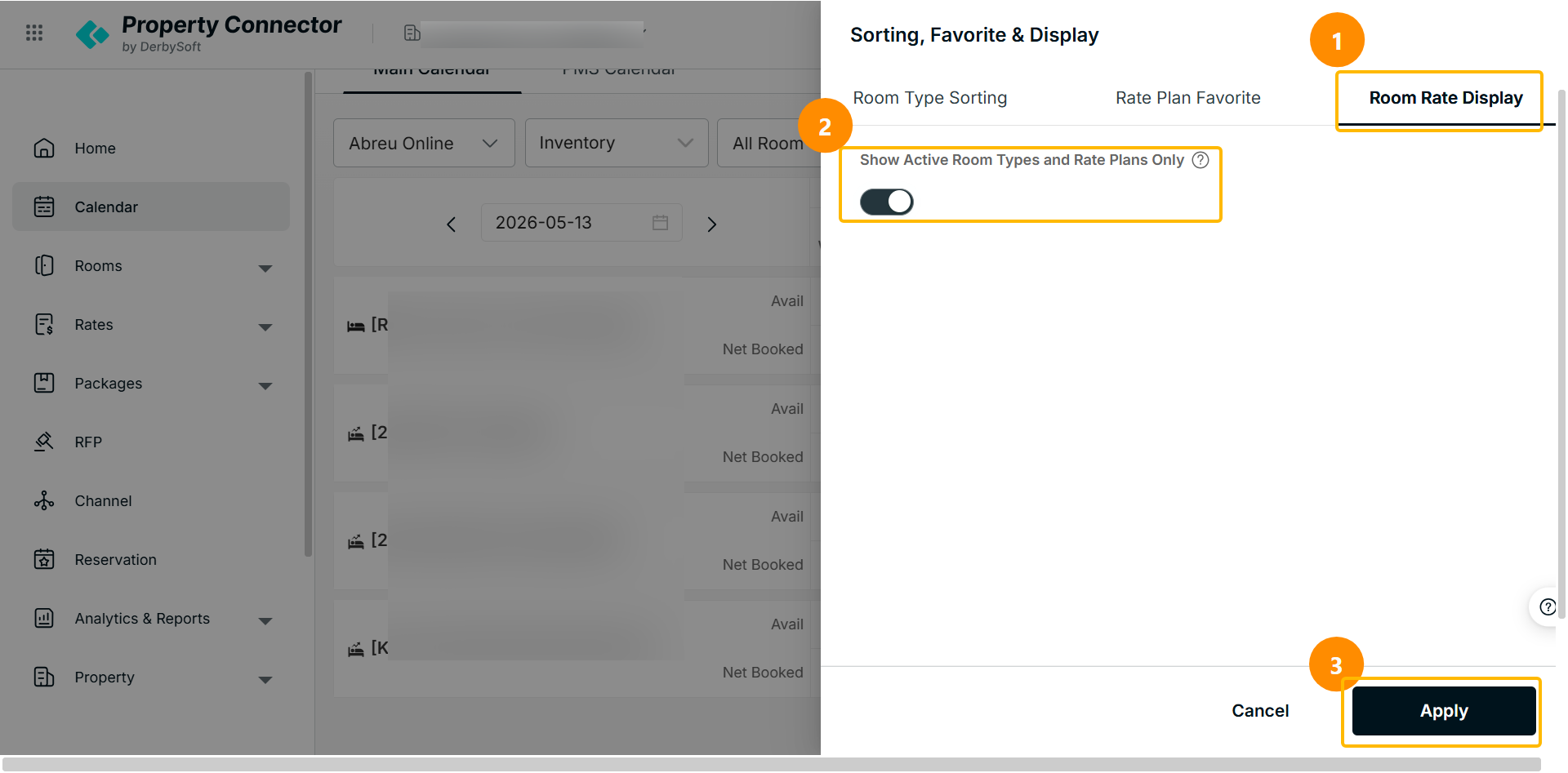
- Go to Room Rate Display tab
- Locate the toggle “Show Active Room Types and Rate Plans Only” and switch it to ON.
- Click Apply to save your changes.
Step 3: Operational Impact
- Automated Decluttering: Any Room Types or Rate Plans currently in Deactivated or Creating status will instantly disappear from your calendar view.
- Synchronized Menus: Your Room Type Sorting and Rate Plan Favorite menus now show each item's status and limit selection to Active inventory only.
Did you find it helpful? Yes No
Send feedbackSorry we couldn't be helpful. Help us improve this article with your feedback.