How to Create ARI Audit Report
Modified on: 2026-04-30 15:09
As part of our design update, the screenshots are currently being revised.
Introduction
This guide explains how to generate and export future Availability, Rates, and Inventory (ARI) reports for auditing purposes across multiple properties within a hotel group.
TABLE OF CONTENTS
Instructions
Step 1: Access the Reports Creation Page
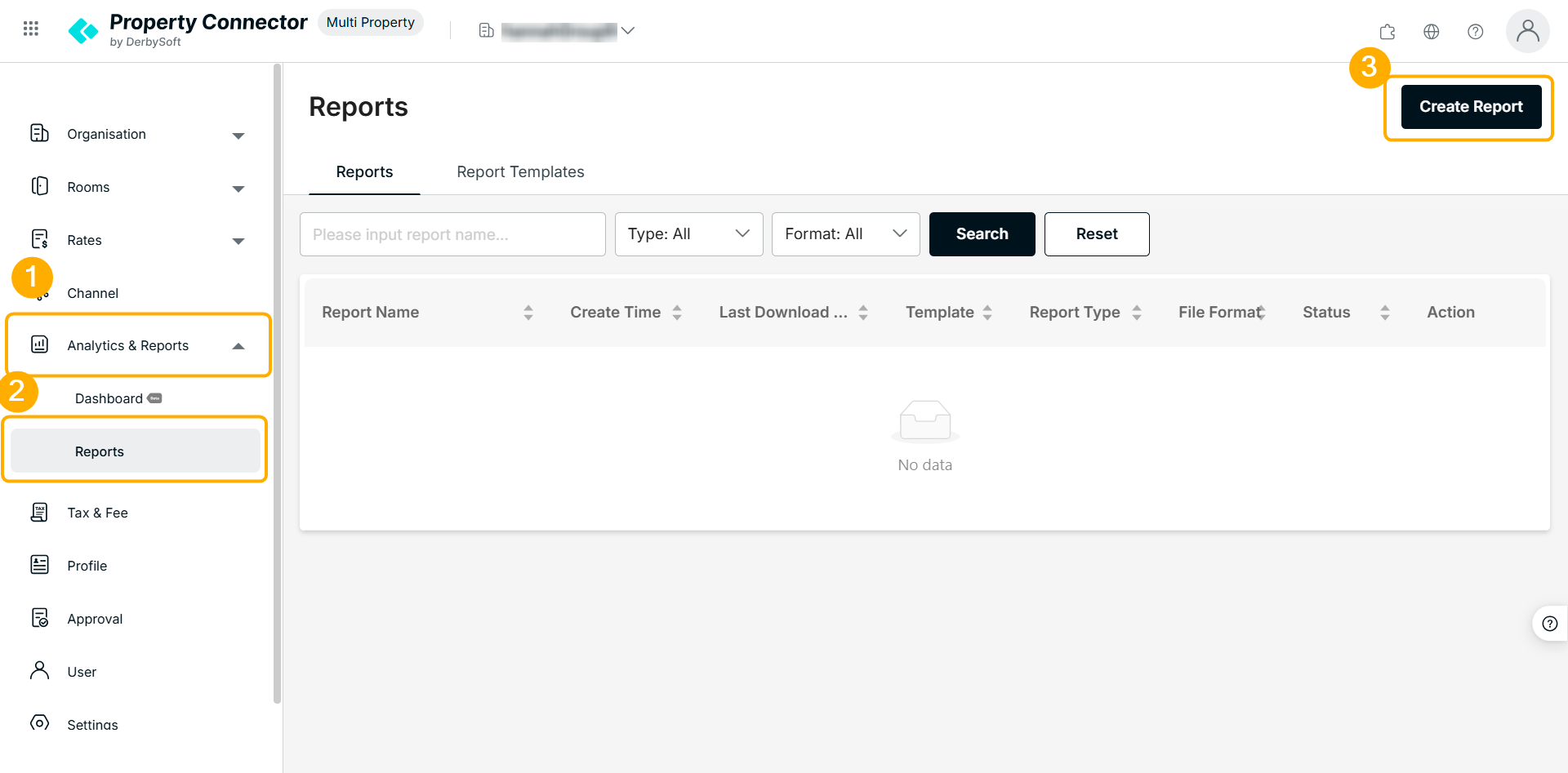
Navigate to Multi Porperty Portal and go to Analytics & Reports > Reports page. Click on Create Report button.
Step 2: Select the Report Type
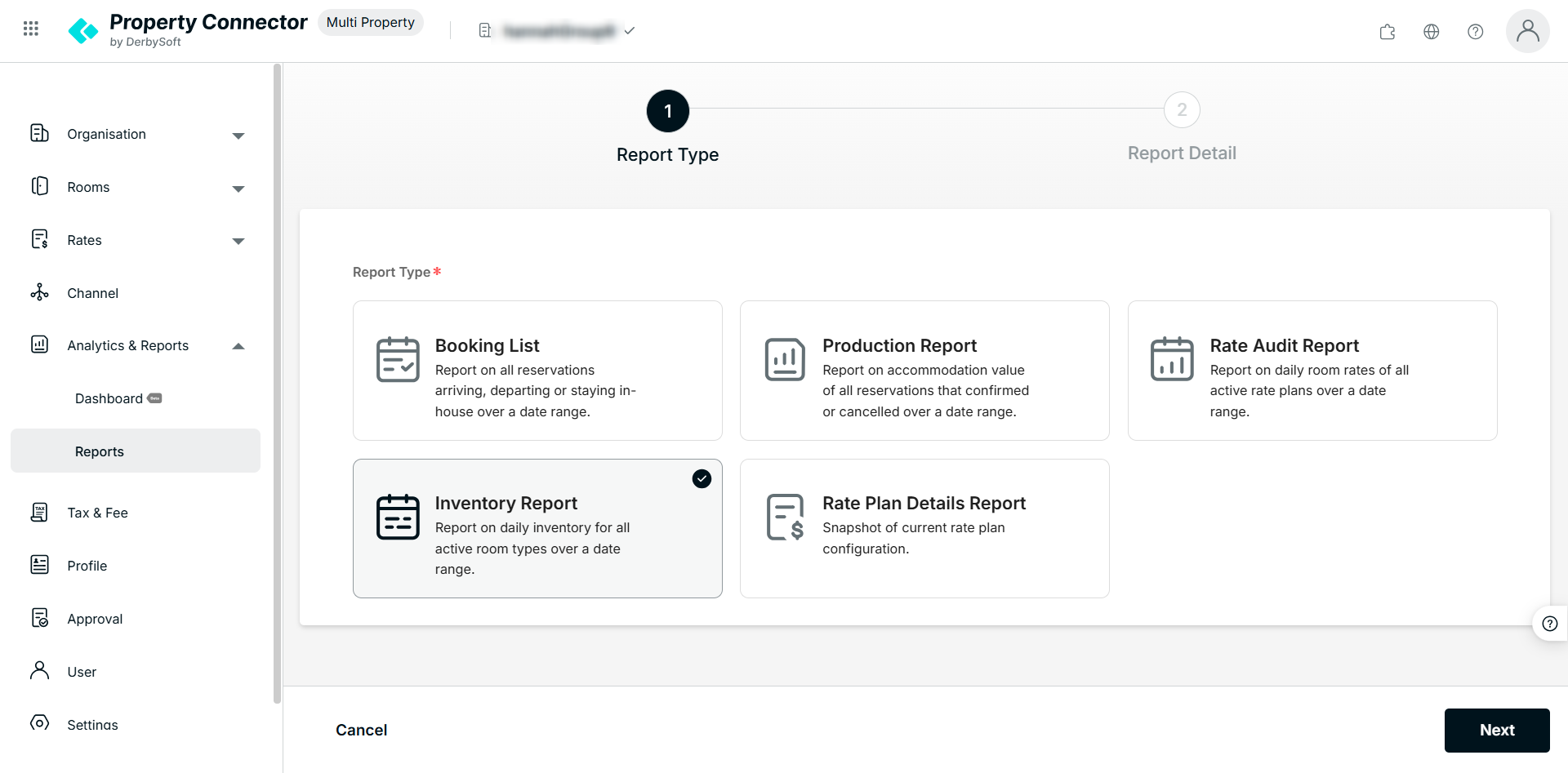
Choose one of the three new ARI-specific reports:
- Rate Audit Report
- Inventory Report
- Rate Details Report
Step 3. Property Selection & Constraints
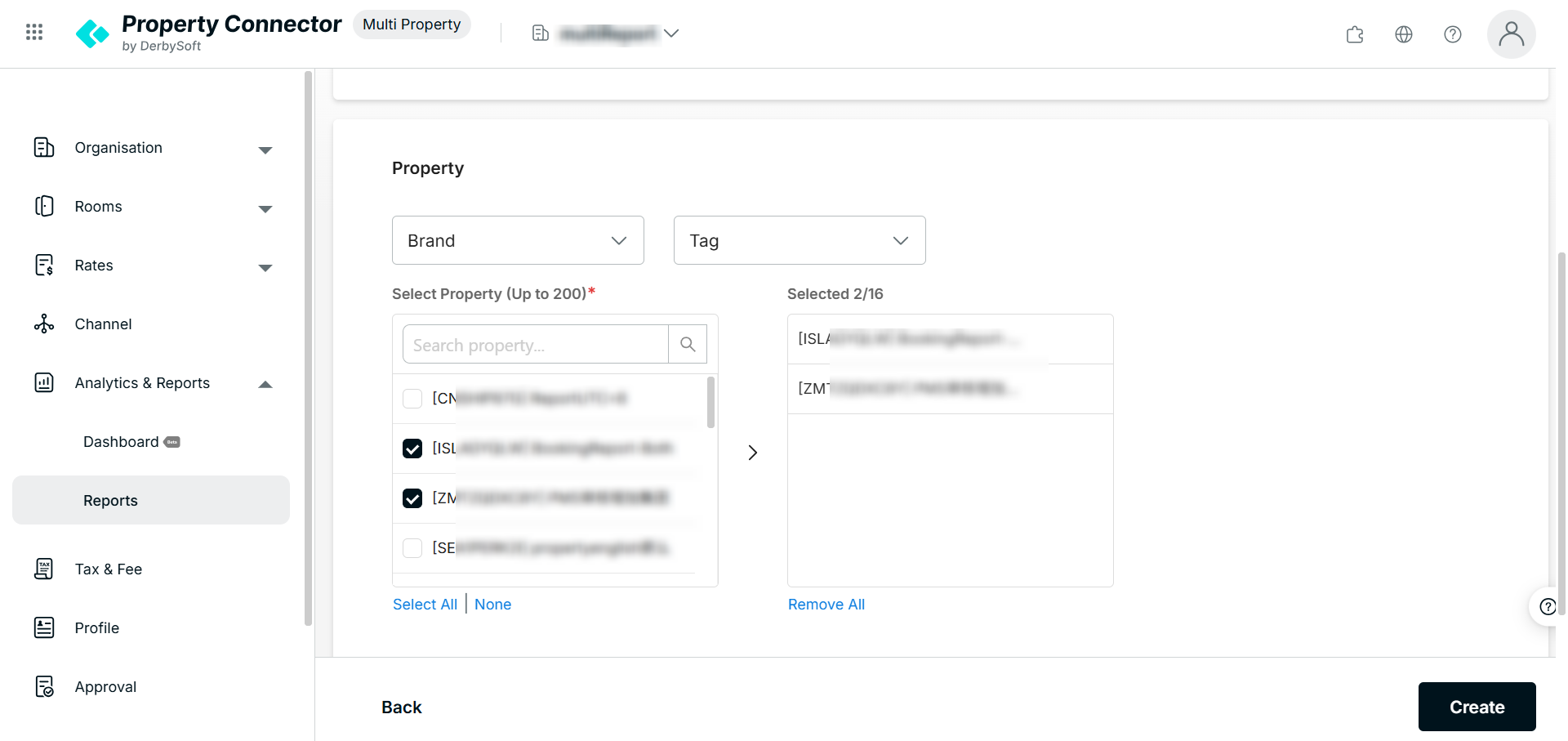
Select the properties you wish to include. You can filter by Brand or Tag.
- Property Limit: You may select a maximum of 200 properties per report.
- Product Limit: The system will export up to 2,000 products per property.
- Status Filter: Only Active Rate Plans and Channel Products are included. Deactivated or suspended items are automatically excluded.
- Exclusions: Please note that CRS Connectivity hotels are currently not supported for Inventory Reports.
Step 4: Set Filters
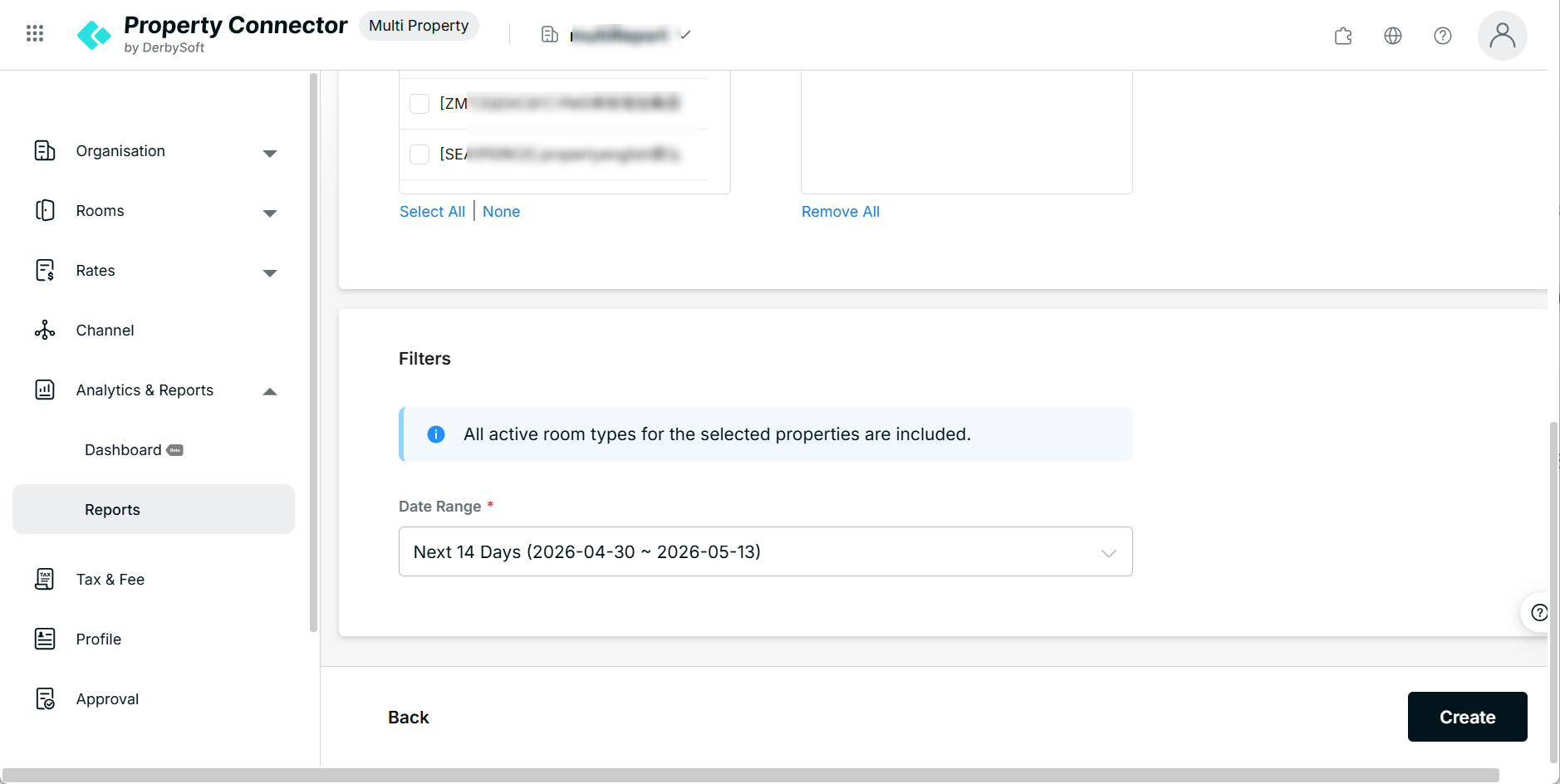
Select how far into the future you want to audit:
- Presets: Next 7 Days, 14 Days, 30 Days, 60 Days, or 90 Days.
- Custom: Define a specific range up to 365 days in the future.
- Time Zone: All data is processed using the Group’s Primary Time Zone to maintain consistency across different regions.
Step 5: Create Report
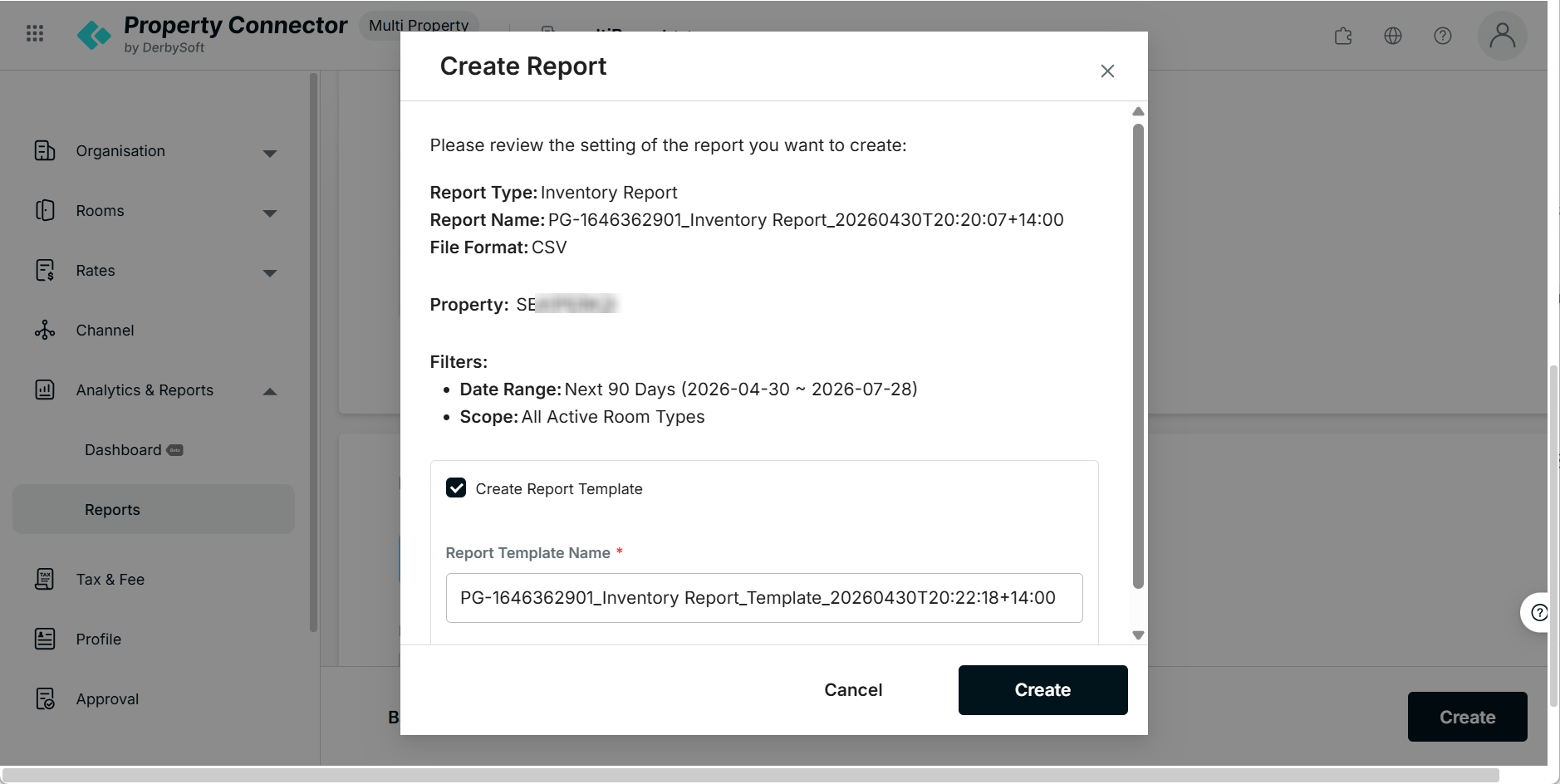
- Review your settings in the confirmation pop-up.
- Click Create to generate a one-time report.
- Template Option: You can save these settings as a Report Template for recurring use.
Notes:
If "Custom Date Range" is selected, you cannot save it as a template.
Step 6: Download Reports
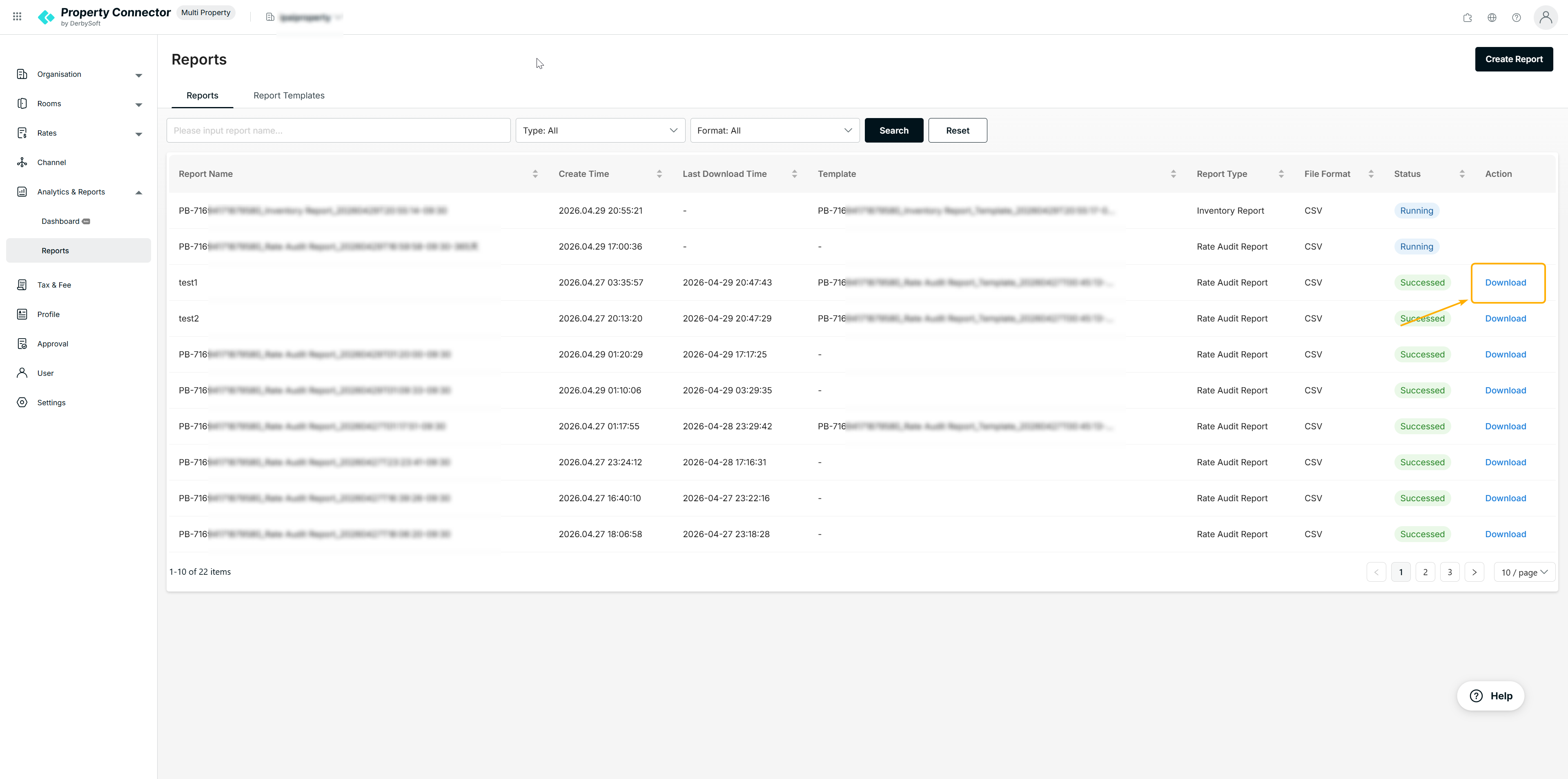
- Format: Reports are generated as CSV files.
- File: To keep data clean, the system generates one individual file per hotel.
- Delivery: You will receive an email notification once the export is ready.
- Retention: Files are stored in the system for 3 months.
Did you find it helpful? Yes No
Send feedbackSorry we couldn't be helpful. Help us improve this article with your feedback.