How to Batch Add Properties via Excel Upload
Modified on: 2026-04-07 09:52
As part of our design update, the screenshots are currently being revised.
TABLE OF CONTENTS
Introduction
This guide explains how group users can efficiently create and publish multiple hotels at once in the Multi-property system by uploading a standardized Excel template, reducing formatting errors and ensuring maintainability.
Key Considerations & Limitations
New Creations Only: This feature is strictly for onboarding new properties. It does not support batch modifications of existing hotels.
Basic Setup: This tool handles core property information. Subsequent details (e.g., room types, pricing, or channel mapping) must be configured separately after creation.
PMS Compatibility: Currently, the system only supports bulk imports for Opera Cloud (OHIP) and Oracle Cloud (Distrubition) PMS connections.
Capacity: A single upload supports a maximum of 1,000 rows.
Instructions
Step 1. Navigate to Import Property
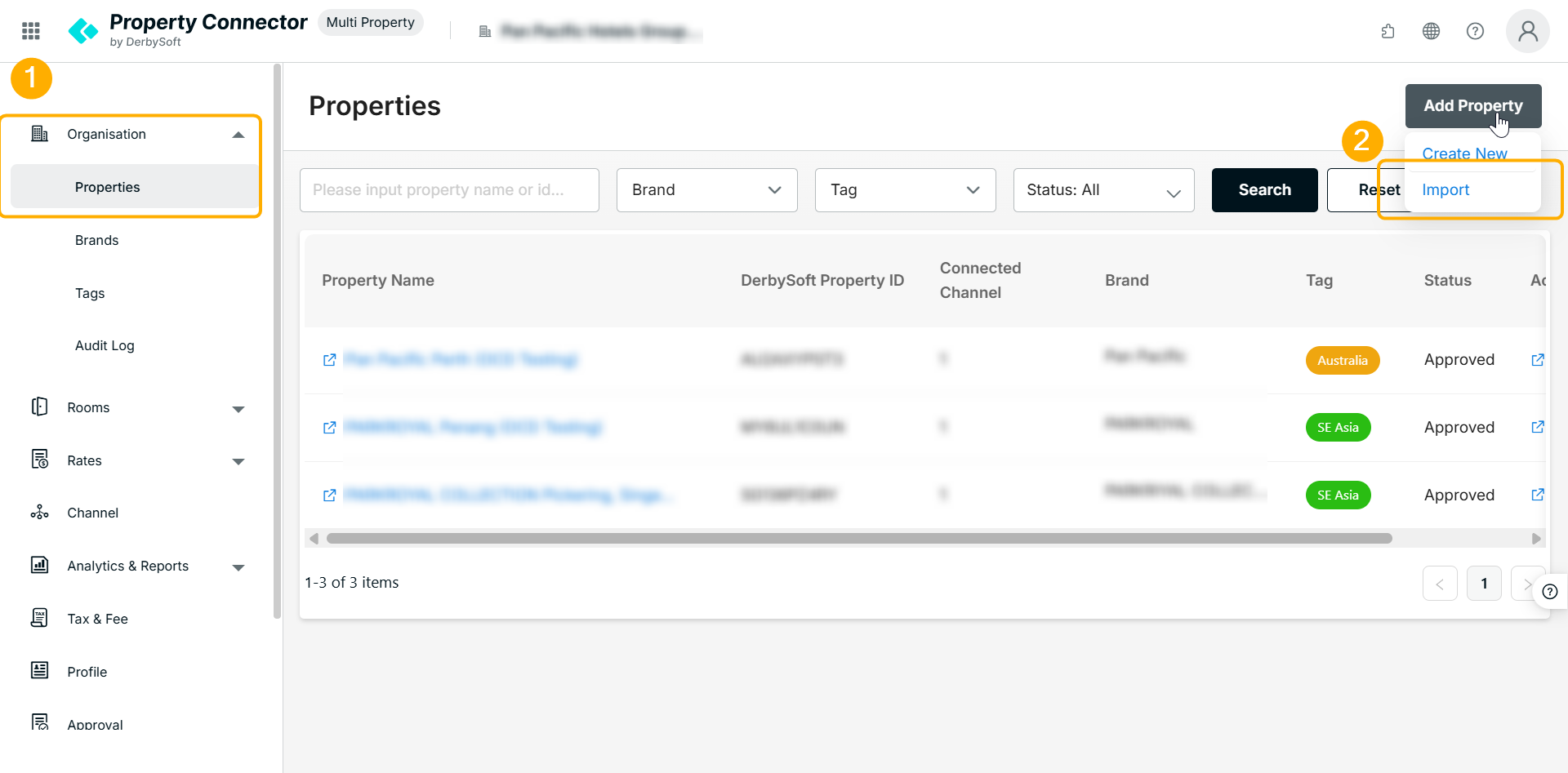
Log in to the Multi Property portal.
Go to Organisation -> Properties in the side navigation menu.
- Click the Add Property button and select Import from the dropdown menu.
Step 2. Select PMS Connection Type
Choose the appropriate connection type (Opera Cloud (OHIP) or Oracle Cloud (Distrubition)). The template and validation logic will adjust based on your selection.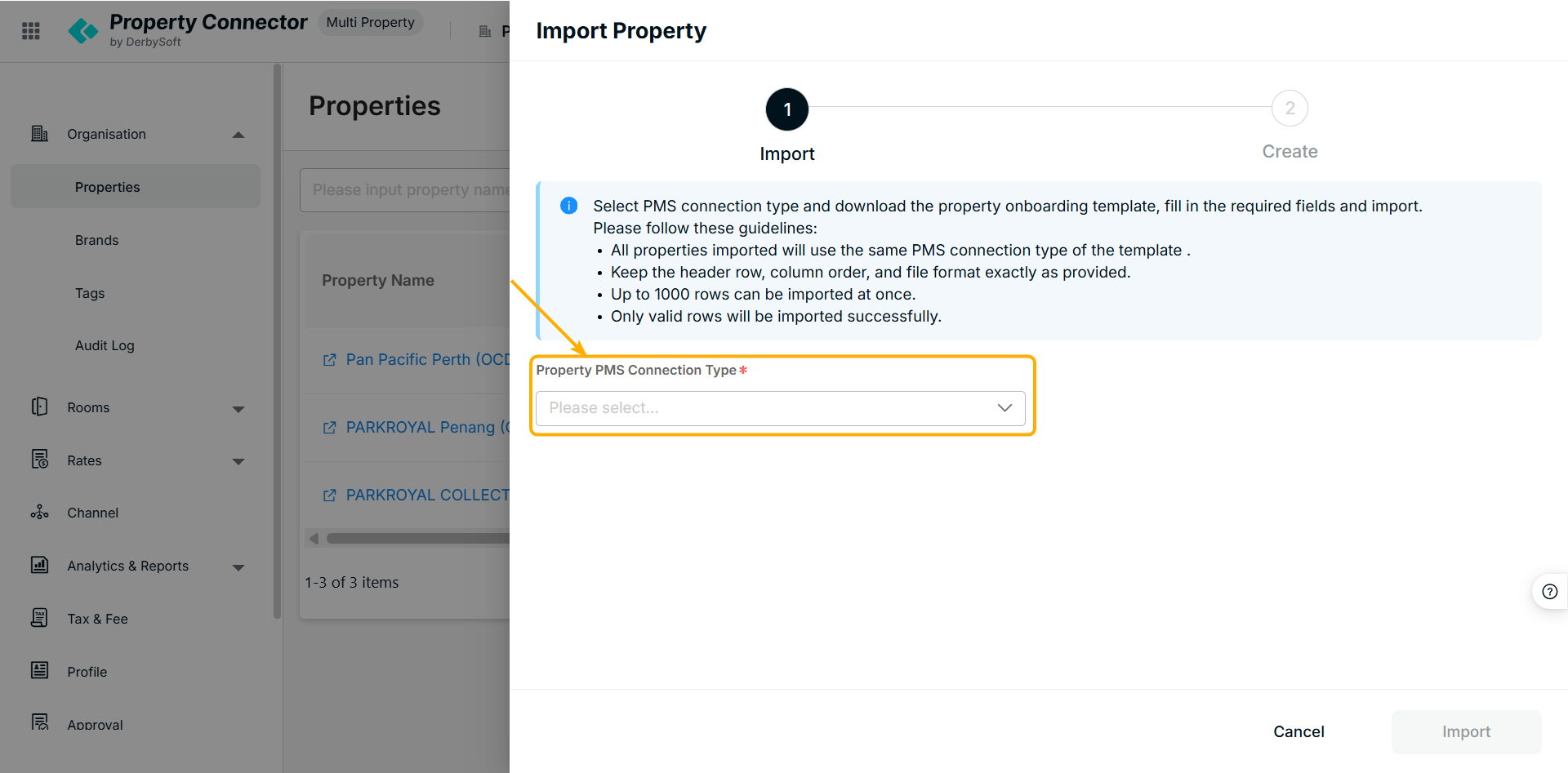
Step 3. Download the Standardized Template
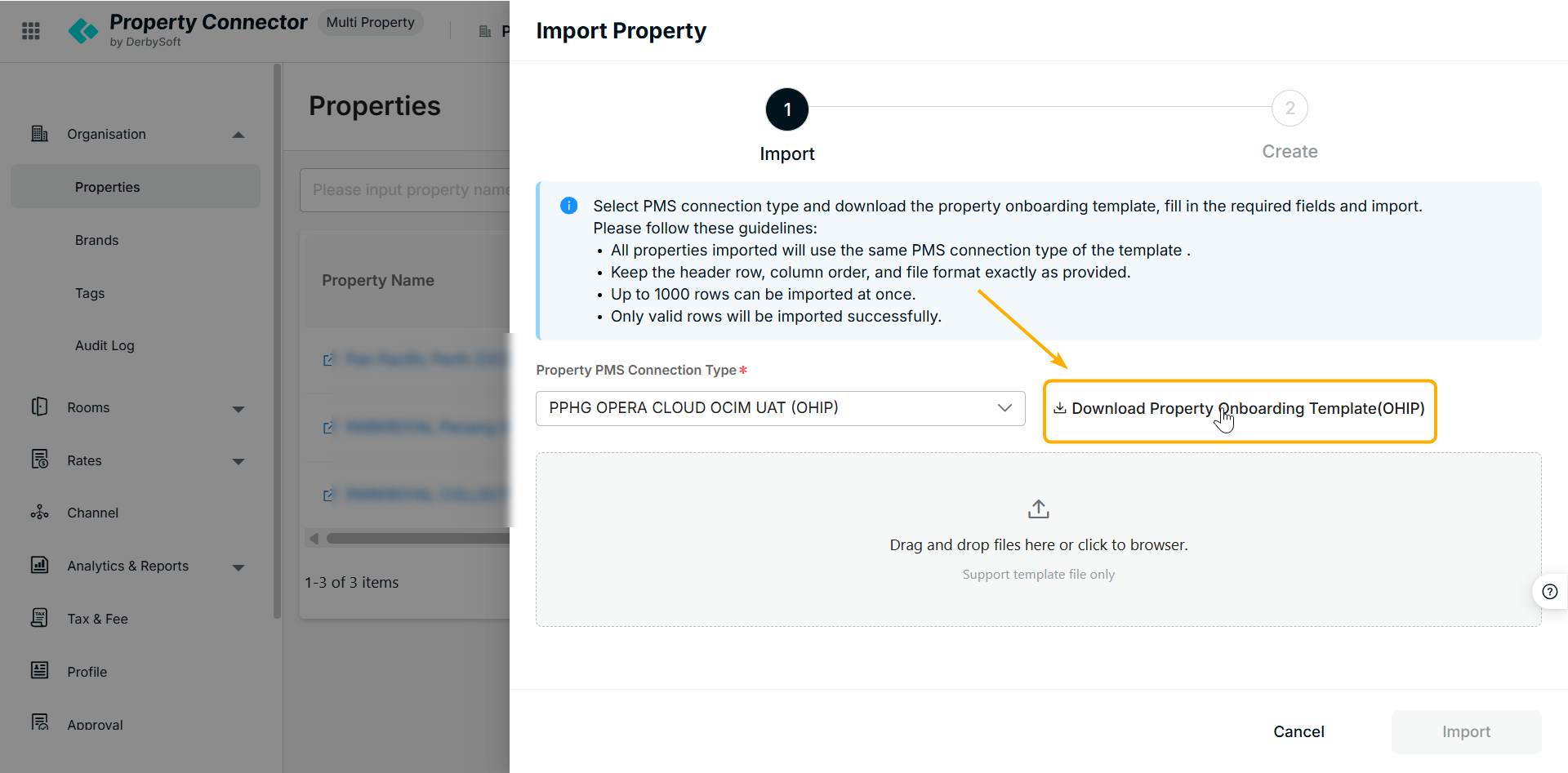
Click Download Template to receive the .xlsx spreadsheet.
Important:
Do not modify the headers, their order, or the format. A single upload supports a maximum number of 1000 rows.
Step 4 Fill Out the Template and Upload
Carefully input your hotel data. Once you upload the file, the system will automatically validate the data against the following rules:
| Requirement | Description |
|---|---|
File Format | The file must be saved in .xlsx format. |
Mandatory Fields | Fields marked with an asterisk (*) (e.g., Hotel Name, Country, City, Address) cannot be empty. |
Text Constraints | Data must not contain illegal or invisible characters. Observe length limits (e.g., Postal Code must be ≤ 20 characters). |
Predefined Values | Fields like Country, Currency, and Timezone must exactly match the system's supported enumeration values. |
Once the data is ready, upload the file through the portal to initiate the validation process.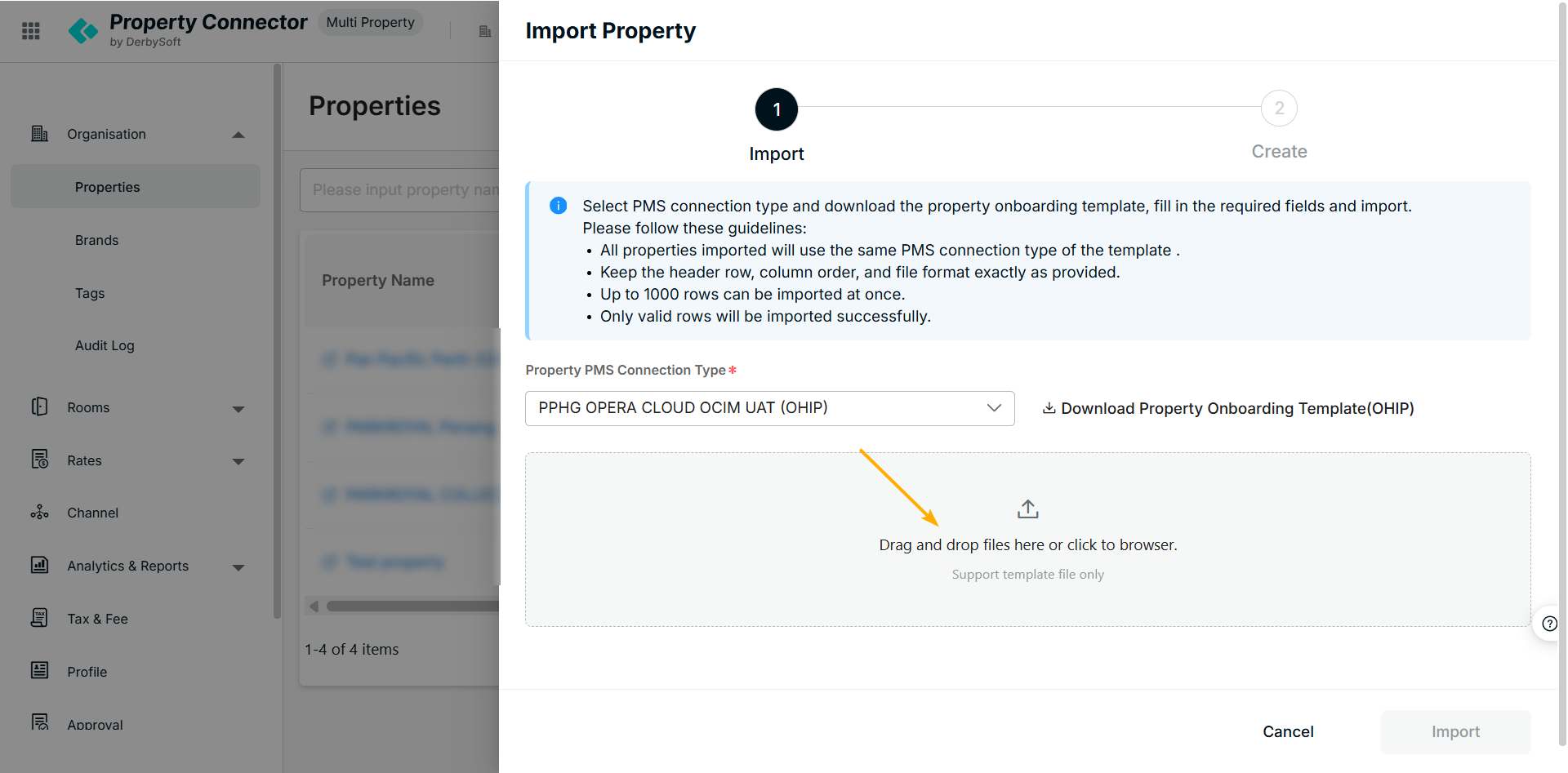
Step 5. Review Validation Results
After uploading, the system will provide a preview of the data. Review the status before finalizing.
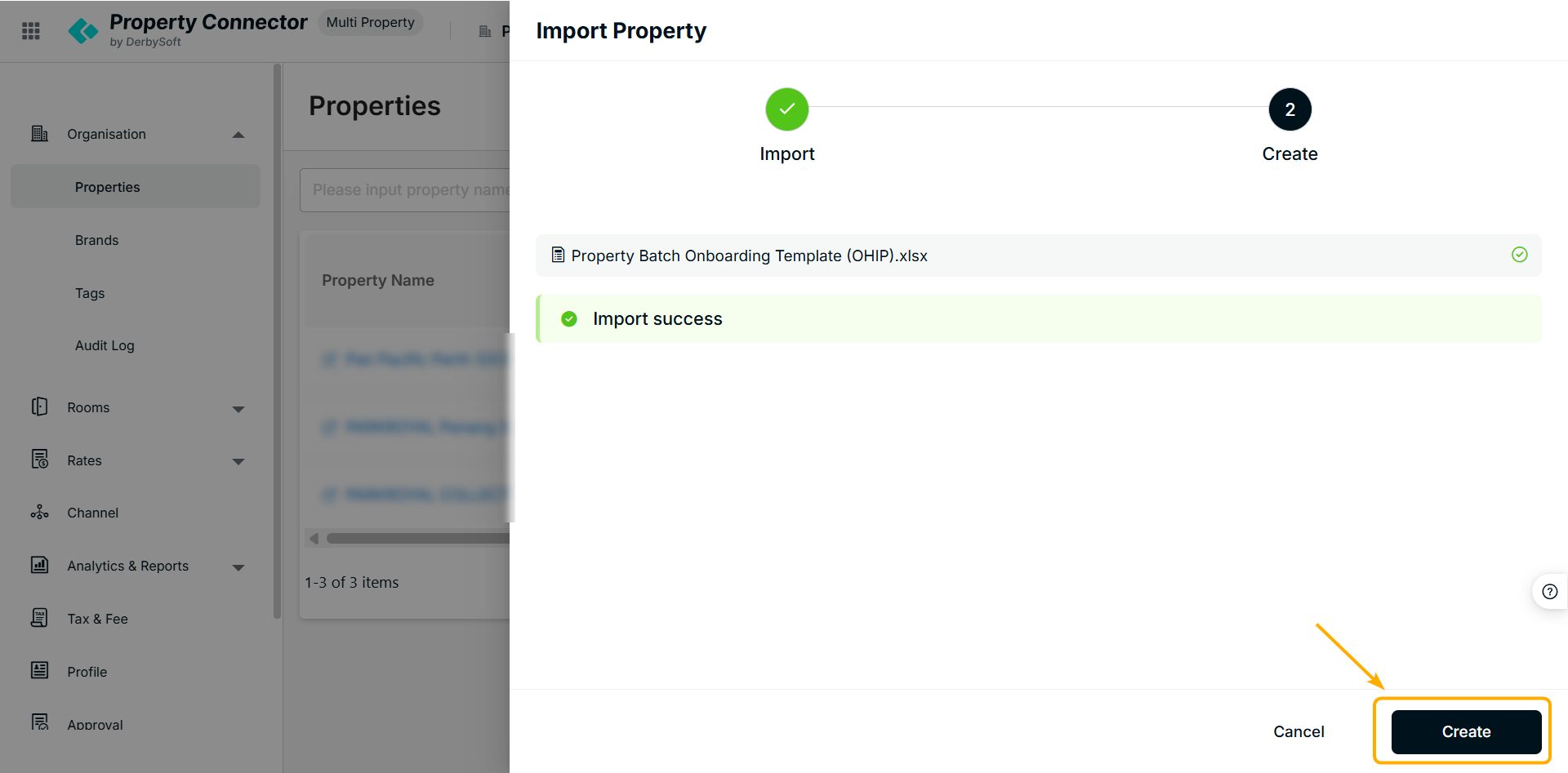
Scenario 1: Import Success
- The system displays "Import Success". Click Confirm. The creation process will run and create new property in few minutes.
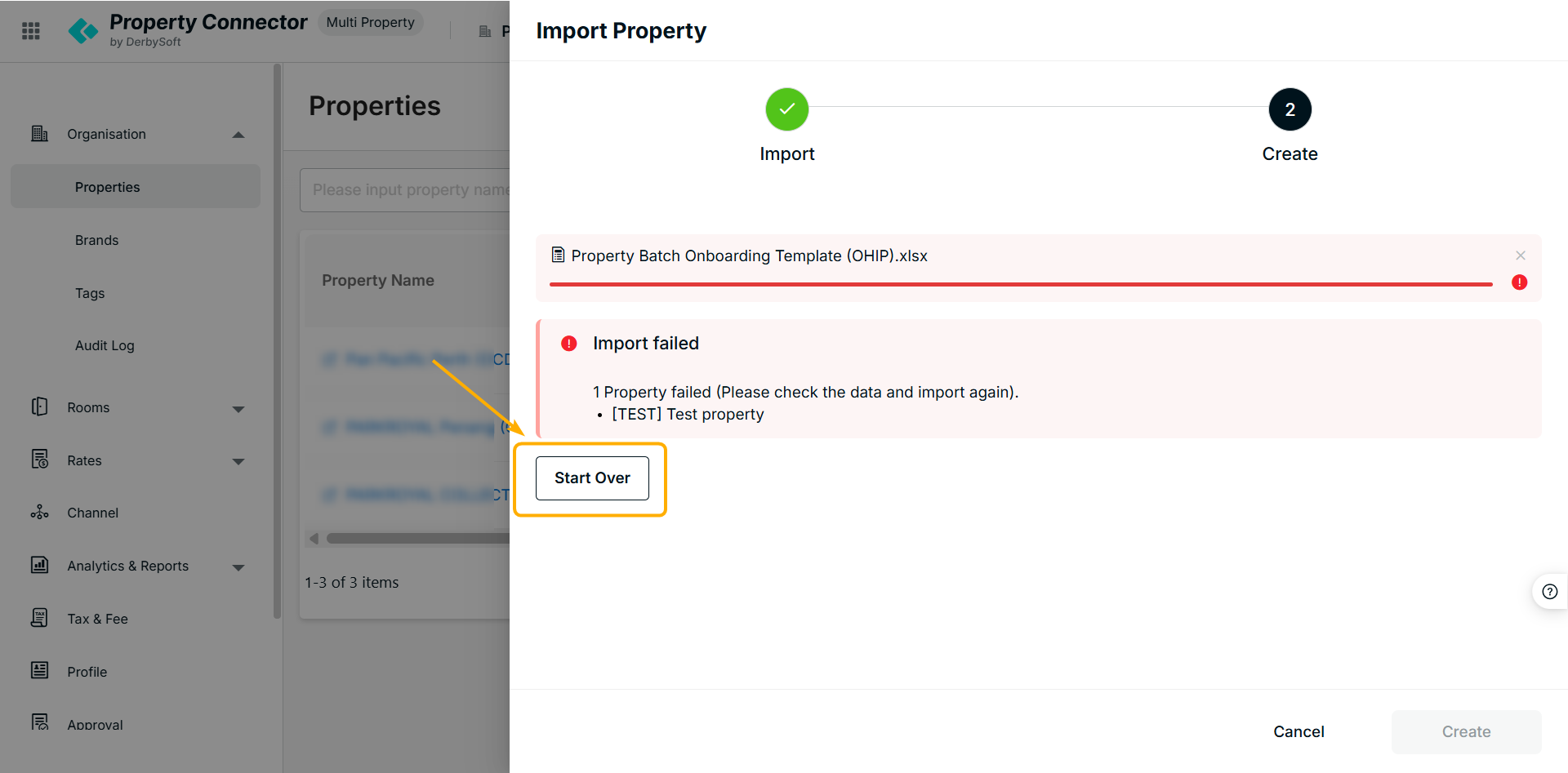
Scenario 2: Import Failed
The system displays "Import Failed". This usually indicates a corrupted file structure or modified headers. Please verify the template and click Start over to retry.
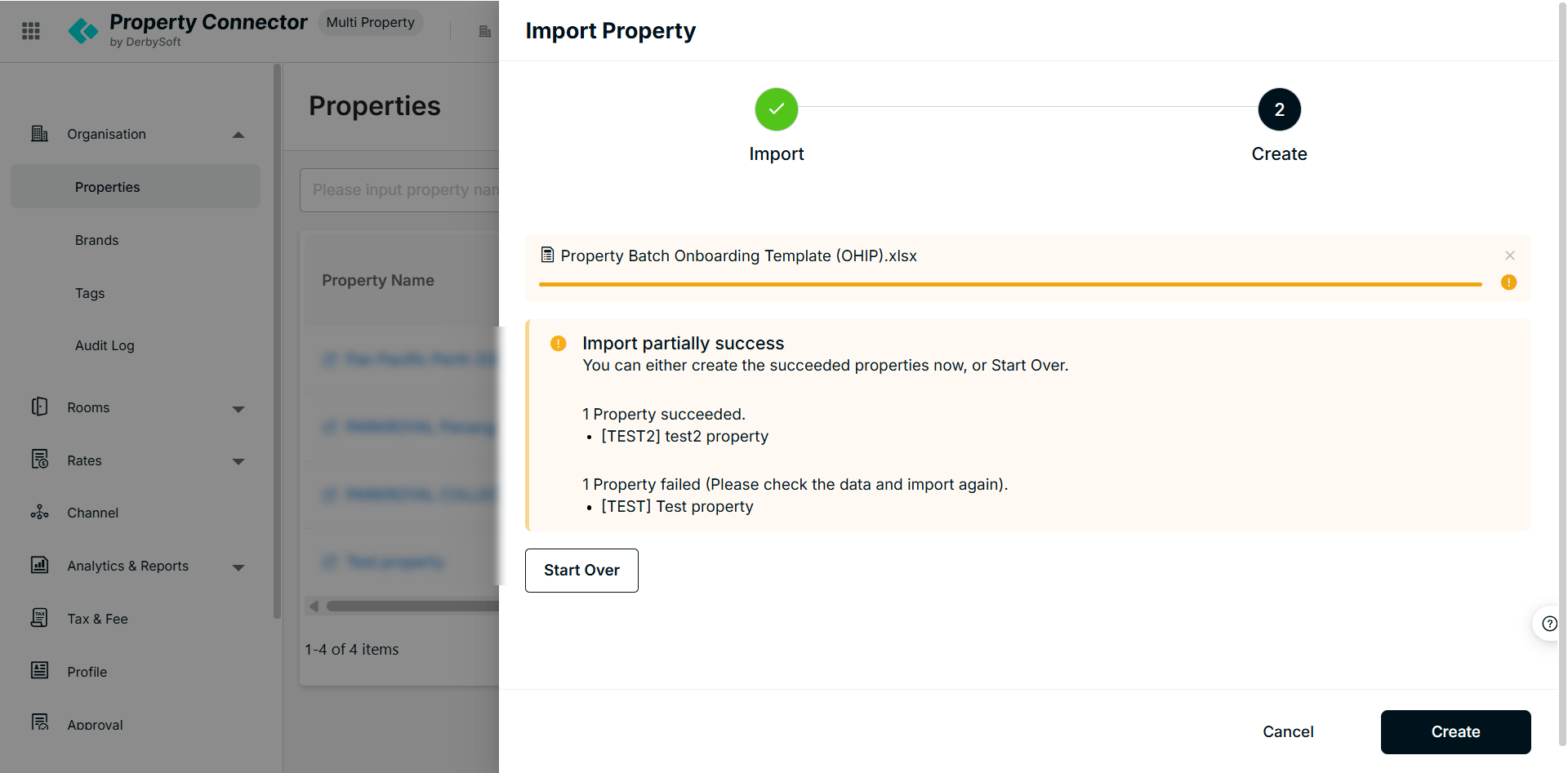
Scenario 3: Partial Failure
Rows containing errors (e.g., duplicate hotel names or invalid formatting) will be flagged as "Failed". You may proceed with the valid rows or cancel the upload to correct and re-import the entire file.
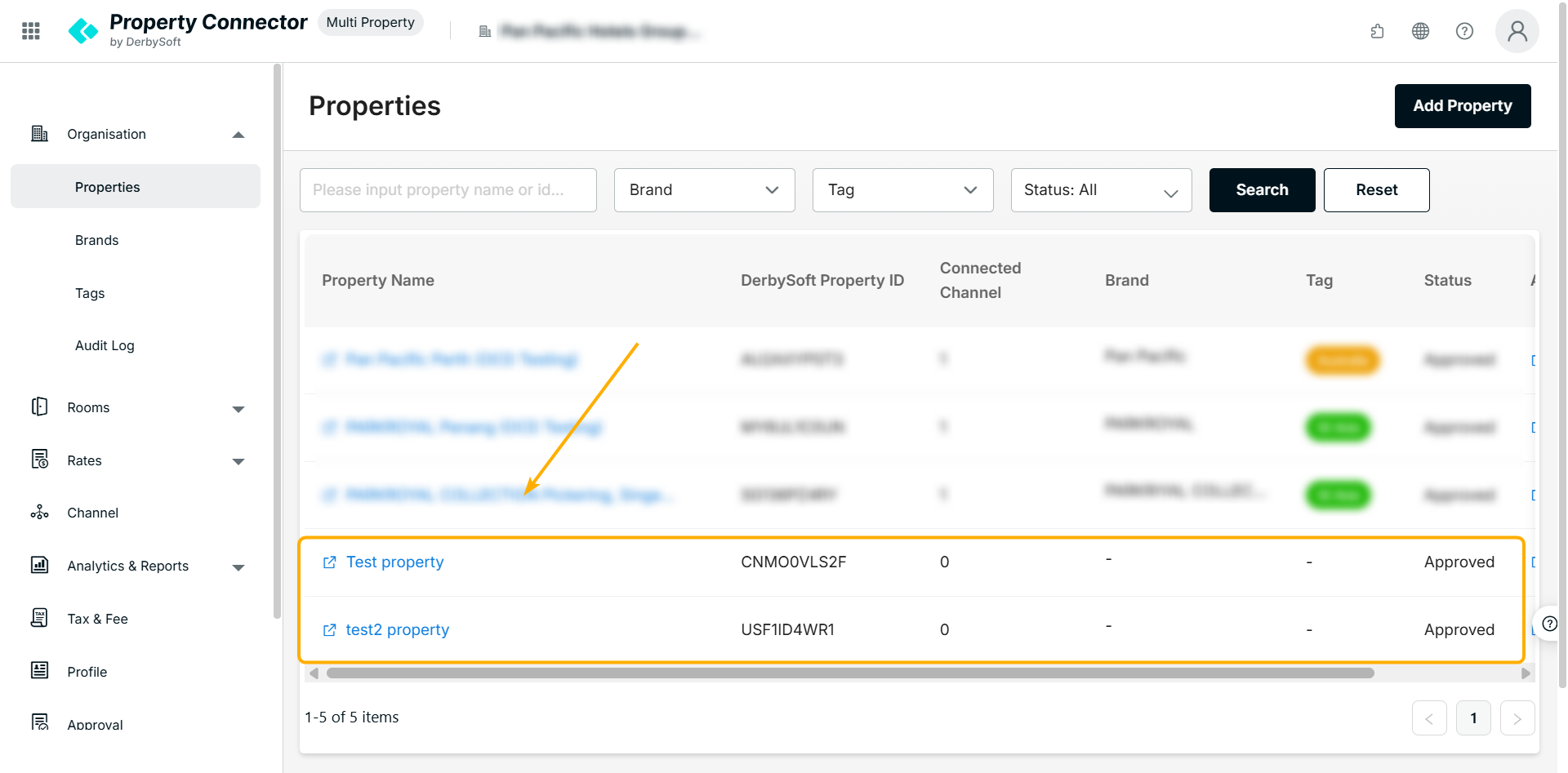
Outcome
Once the task is completed, the successfully created hotels will be automatically displayed on the group's properties list.
Did you find it helpful? Yes No
Send feedback