How to Set Reservation Rate Comparison
Modified on: 2026-05-14 11:12
As part of our design update, the screenshots are currently being revised.
Overview
Reservation rate comparison feature helps detect potential price discrepancies between channel reservation rates and PC rates.
When the difference exceeds your configured threshold, the system will execute your selected action—either sending an alert email with detailed information or automatically rejecting the reservation.
Instruction
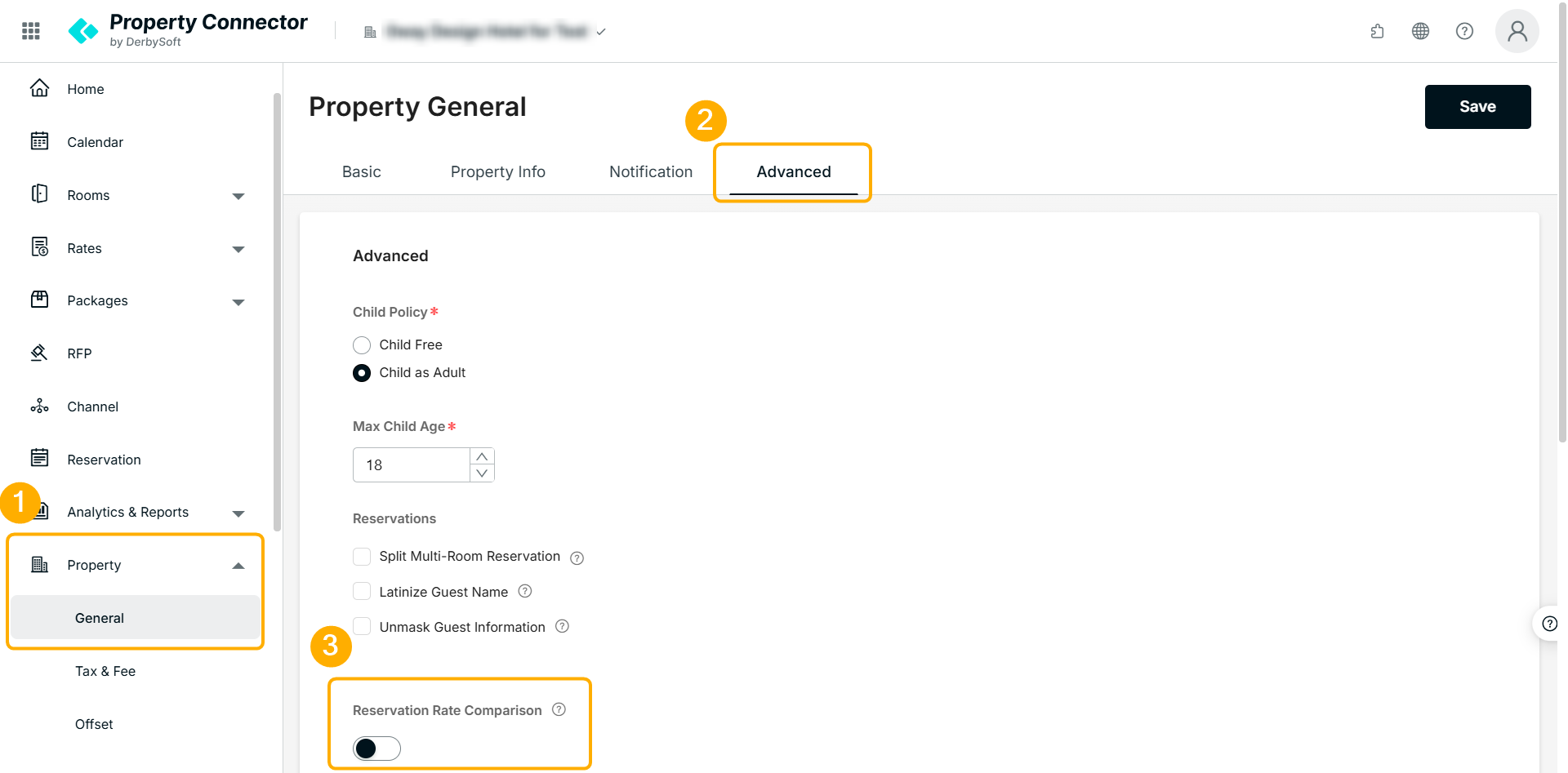
Step 1. Go to Advanced Settings
- Navigate to Property General > Advanced page
- Find Reservation Rate Comparison section
Step 2. Enable & Set Threshold
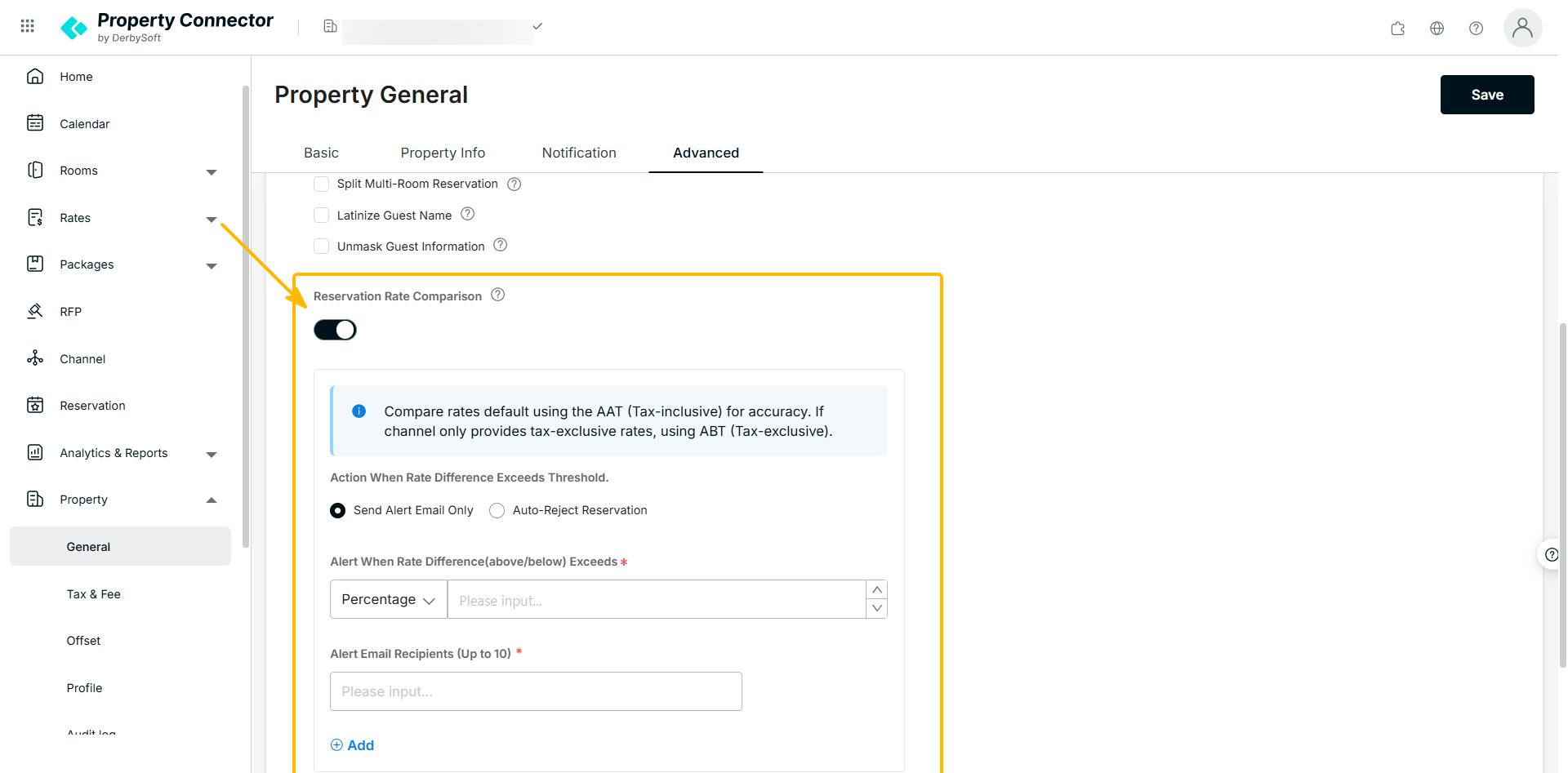
Choose how the system should respond when a rate exceeds the threshold:
- Alert Only (Default): The system processes the order normally but triggers an email notification.
- Auto-Reject: The system will automatically reject the incoming reservation
- Threshold Type
You can choose:- Percentage – based on rate difference ratio
- Fixed Value – based on absolute price difference
- Threshold Value
- Value must be greater than 0
- Value must be greater than 0
Important:
- Comparison Rule
The system compares the total Reservation Rate sent by the channel with the live-check total PC ARI Rate assigned to the channel. The comparison is strictly based on the exact same combination of data, room type, rate plan, number of rooms and number of adults/children.
- Tax Standard Compare rates default using the AAT (Tax-inclusive) for accuracy. If channel only provides tax-exclusive rates, using ABT (Tax-exclusive).
- Percentage Threshold & Rounding Percentage calculations are rounded to two decimal places. For example, if your threshold is 1%, and the actual calculated difference is 0.99%, it will be rounded to 1% and an alert will still be triggered.
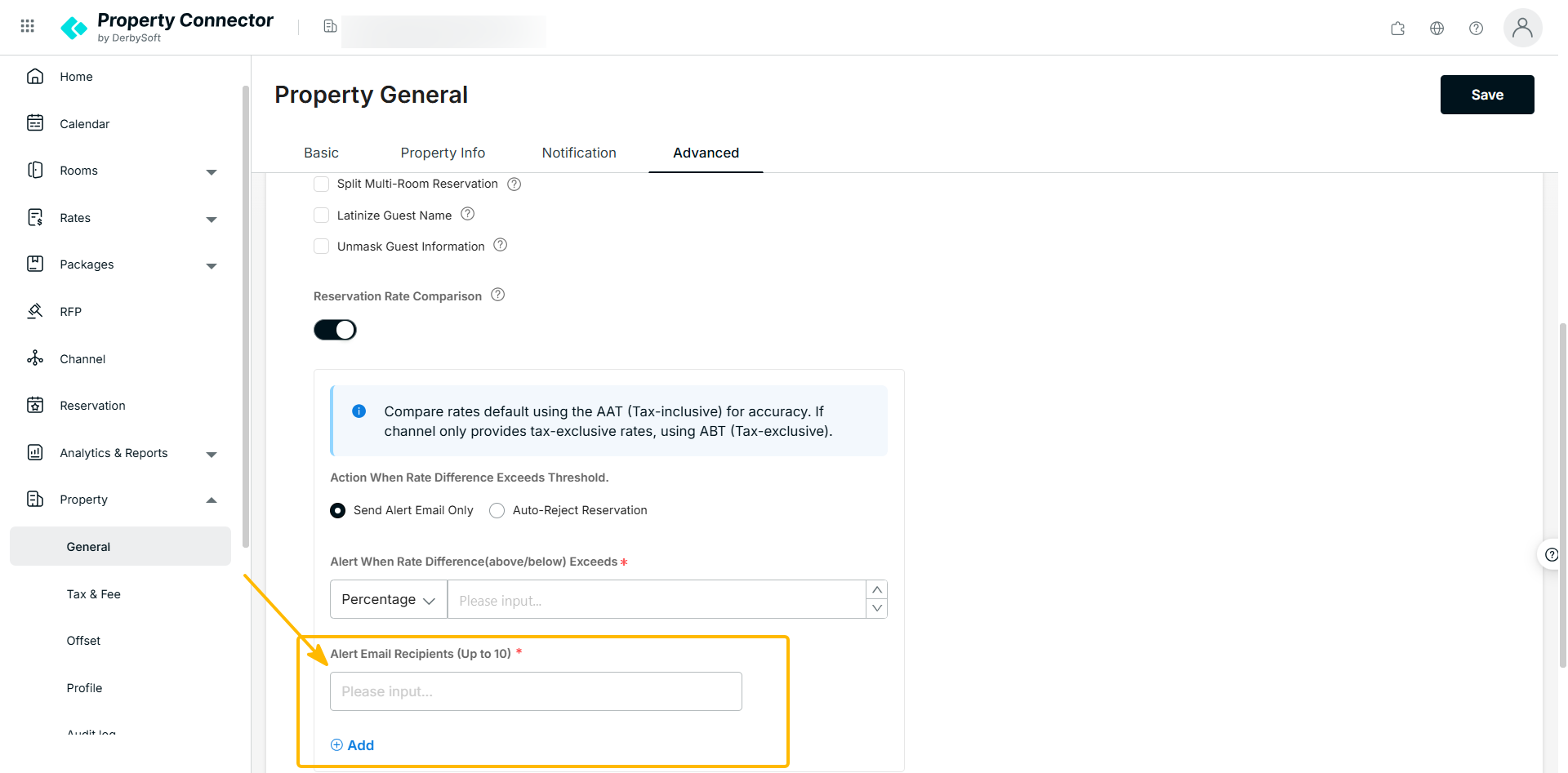
Step 3. Add Email Address
- You can add up to 10 recipients, and multiple recipients will all receive alerts
Notes: Email is required when the feature is enabled.
Step 4. Save Changes
Click Save to apply your configuration
Once saved, all new incoming reservations will be checked
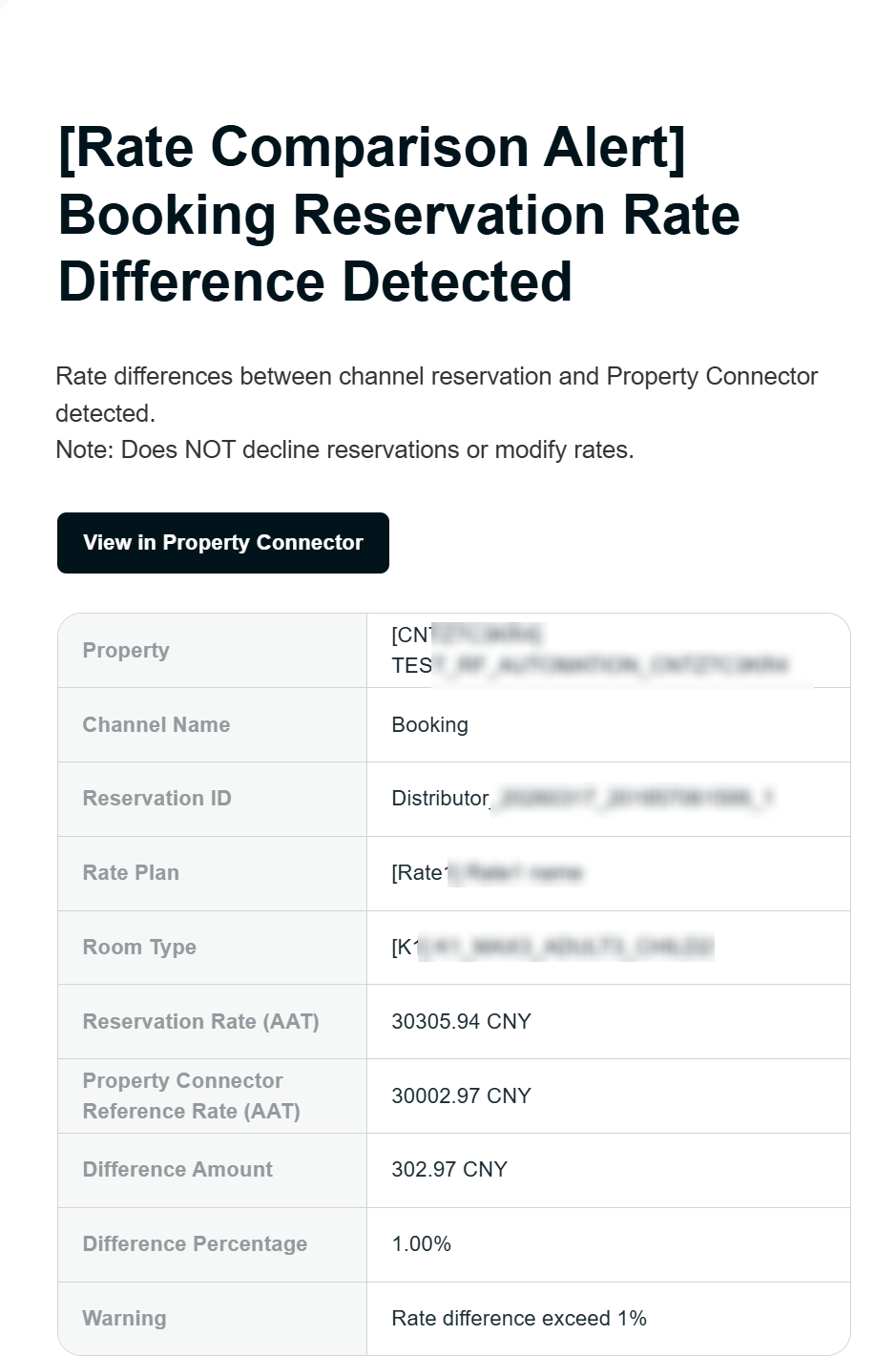
- If Alert Only is selected: You will receive the alert email below when exceeding the set threshold.
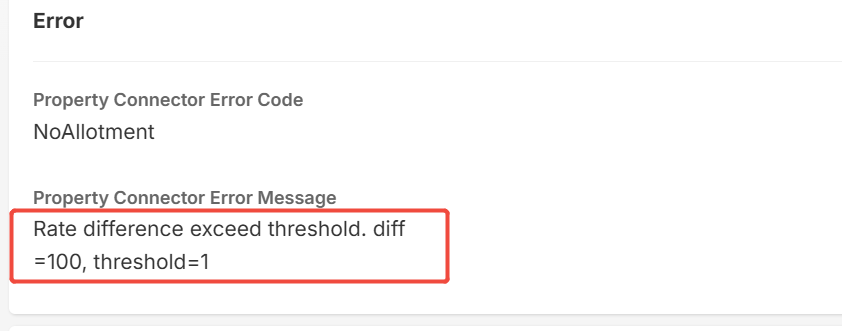
- If Auto-Reject is selected: The system will automatically reject the order. To assist with operations and troubleshooting, the order details will display on Reservation page.
Did you find it helpful? Yes No
Send feedback