How to initialize the integration
Modified on: 2026-04-24 03:30
As part of our design update, the screenshots are currently being revised.
Stage 1: Account Setup and Preparation
Become a user of DerbySoft Property Connector and IDeaS RMS. The approximate time will be 2 weeks for implementation.
Make sure the PMS connection meets the requirements:
1.1. Connection Requirements
- PMS vendors must send physical room inventories to DerbySoft, excluding overbooking units, even when the counts are negative numbers.
- PMS vendors must send room type inventories to DerbySoft, instead of room rate inventories.
1.2. Mapping Requirements
- All yieldable room types and rate codes must be set up in both RMS and the Property Connector.
- One Room type should have the same unique code in RMS, Property Connector, and PMS.
- One Rate plan should have the same unique code in RMS, Property Connector, and PMS.
- Codes for room types are entered under Rooms > Room Type
- Codes for rates are entered under Rates > Rateplan
1.3. Configuration Requirements in Property Connector
- The IDeaS connection needs to be activated in Property Connector Marketplace.
- The connection details, including the URL of endpoints need to be provided in Property Connector.
- Check with your PMS vendor on whether the overbooking units are pushed via PMS. If no, turn on the switch to receive overbooking units from the RMS instead of PMS.
- For the rate code receiving updates from RMS (also known as parent rate), select 'Yieldable' in the Rates > Rateplan > Rate details > Rate setting > Yieldable.
- For rate codes expected to inherit MinLOS updates from the ‘parent’ rate, select ‘Yieldable' in the Rates > Rateplan > Rate details > Rate setting > Yieldable, and choose the parent rate in the selection 'Yield as Rate Attribute’.
Hotel revenue team can set a rate code to be yielded to receive the updates from RMS
Stage 2: Request
LHG to send requests to IdeaS
- Apply for the IDeaS integration in DerbySoft Property Connector Marketplace.
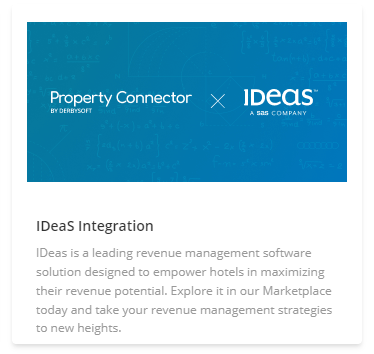
- DS Customer Success team will activate the Integration in the DerbySoft Property Connector Portal.
- Find the sales team of IDeaS RMS about the integration request. A dedicated IDeaS implementation team will be assigned to you for the integration.
- Please let the IDeaS Implementation team know that the following information about the integration
- Vendor: DerbySoft
- Scope: Daily Bar, Inventory overbooking on Room Types, MinLOS
- Hotel ID: DerbySoft property ID. You can find the ID from the PC Dashboard.
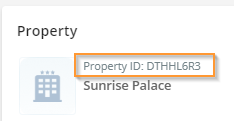
- Rate Code: Rate plans to receive updates from IDeaS. It should be the same code in DerbySoft Property Connector.
- Room Type: Room Types to receive decisions from IDeaS. It should be the same code in DerbySoft Property Connector.
Stage 3: Set up
Finish the configuration in IDeaS and DerbySoft
- IDeaS team will work with the DerbySoft Implementation team on the system integration.
- Please provide the required information and complete the settings in DerbySoft Property Connector.
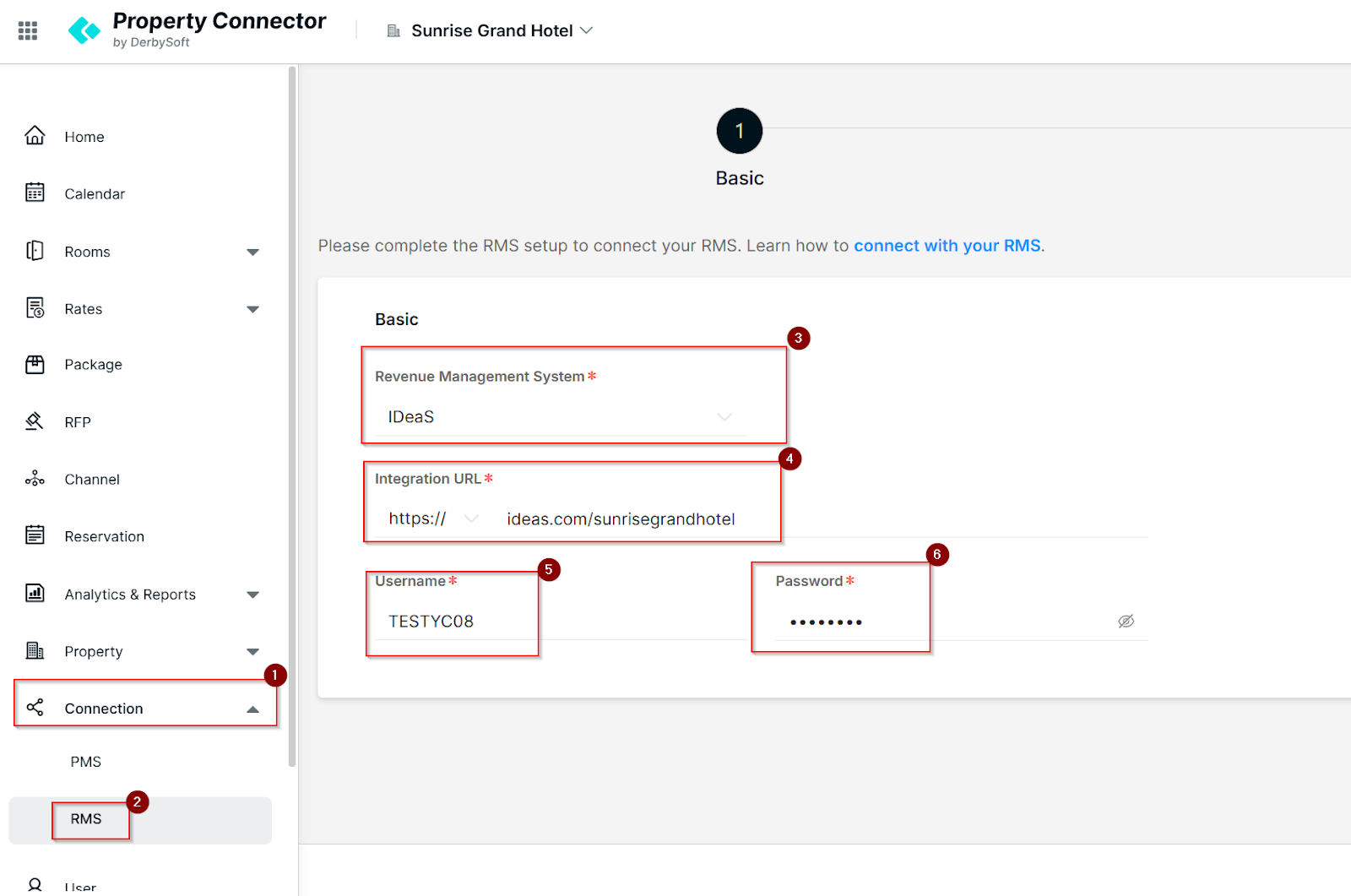
- Click Connection from the sidebar
- Choose RMS
- Choose IDeaS from the dropdown list
- Input Integration URL collected from the IDeaS account manager
- Input the username of the connection collected from the IDeaS account manager
- Input the password of the connection collected from the IDeaS account manager
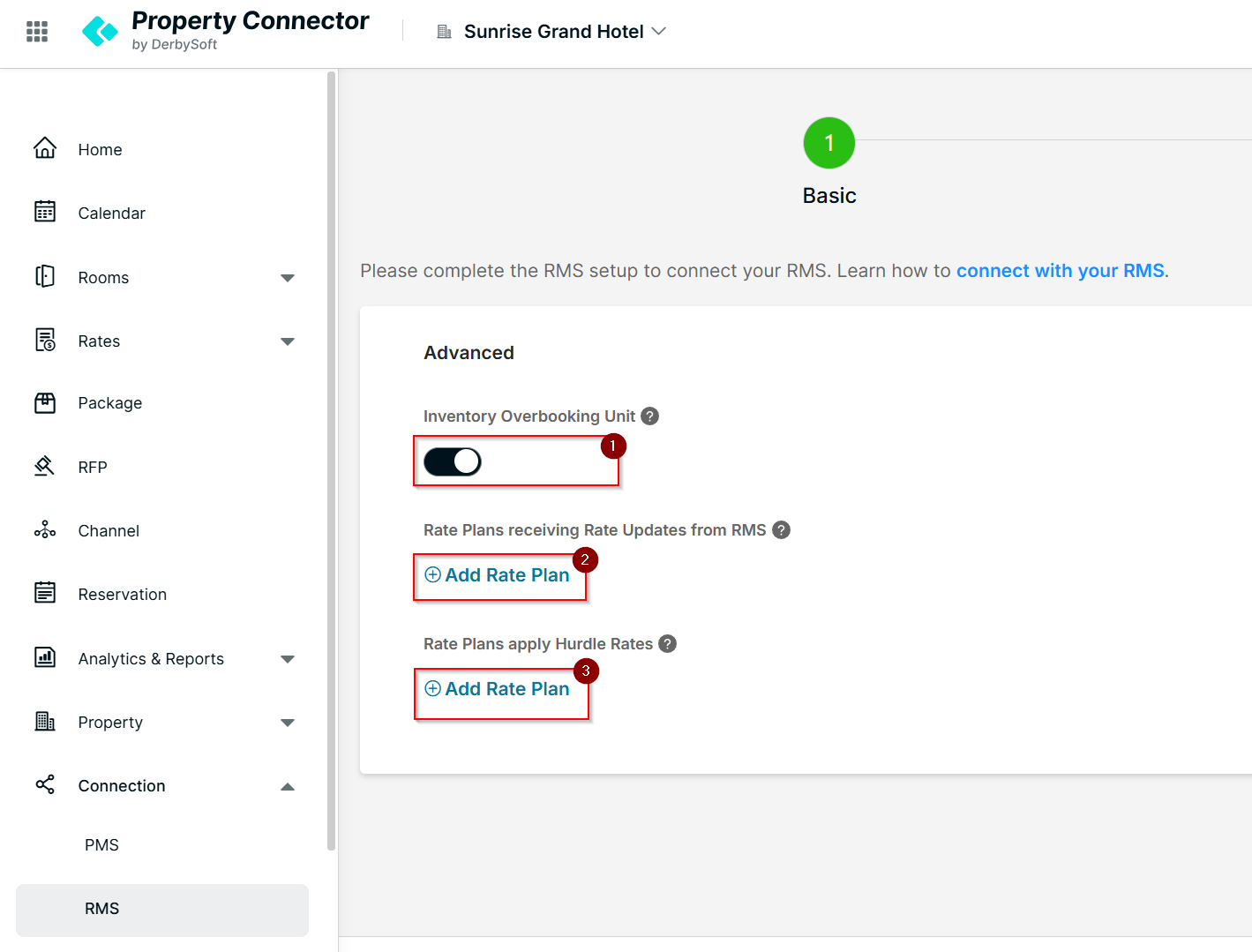
- Inventory Overbooking unit - This is to decide whether inventory overbooking unit will be added to your inventory. Once this feature is activated, the inventory overbooking unit will be added to your inventory received from the PMS or manually input in the Property Connector Calendar, and we push the final unit to the channels. Once the feature is deactivated, we will push the original inventory counts of each room type to channel. (Please repush the inventory overbooking unit updates from your RMS after the switch is deactivated.
- Rate Plans receiving Rate Updates from RMS - Configure the rate plans that will be mapped to receive automated updates from IDeaS. Also in the Rate setup > Rate Model, choose Update via RMS integration .
- Rate Plans apply Hurdle Rates - Configure the rate plans that will be mapped to receive and apply hurdles from IDeaS
Stage 4: Go live
- With the configuration finished by both the IDeaS team and DerbySoft team, IDeaS will start to push rate updates, Inventory overbooking Unit, and MinLOS to DerbySoft for the aligned rate code & room types periodically.
- Once the Decision configurations are done, IDeaS will start sending decision messages periodically. Please check with your IDeaS account manager how often this message should be sent. The received messages will be processed by DerbySoft Property Connector, and the configured rates/Inventories/Restrictions will be updated accordingly.
Did you find it helpful? Yes No
Send feedbackSorry we couldn't be helpful. Help us improve this article with your feedback.